


Last Updated: September 10, 2026
Wappalyzer is one of the best technology detection tools out there, but it’s not perfect. The accuracy can be poor, and they’re starting to get rid of a lot of features in their free plan.
So I took a weekend to test out some alternatives. For each of these tools, you’ll see all the screenshots of my usage, so you’ll know I did my homework 🙂
- Focused on Enterprise Tech Detection + Lead Generation
- Bloomberry – best for sales and lead generation (Free To Try) Focused on Overall Frontend Technologies
- BuiltWith – best for comprehensive frontend coverage (Free To Try)
- WhatRuns – 100% free browser extension (Free To Use)
- SimilarTech – Another 100% free browser extension (Free To Use) Focused on detecting Shopify stores
- StoreLeads – Best for detecting Shopify stores (Free To Use) Focused on detecting Content Management Systems and Plugins
- WPOptic – ideal for finding out what WordPress plugins a site uses (Free To Try)
- TechPeeker – best for lead generation based on CMS and frameworks (Free To Try) Focused on Technology Detection From Job Postings
- JobsPipe – best for technographics from job postings, API-first (Free Tier) Specialized Tools for very technical people
- NerdyData – best for very specific searches (Free To Try)
- UrlScan.io – best for finding technologies other tools can’t find (Free To Use)
- DIY: Using Chrome Network Console + ChatGpt or Claude (Free To Use) Bonus: Open-Source Alternatives
- Wappalyzer-Next – a Python port of Wappalyzer (Free To Use)
- Wappalyzer-Go – A Go port of Wappalyzer (Free To Use)
1. Bloomberry – Best for Enterprise Tech Detection and Lead Generation
Pros: Solid at building lead lists of companies that use enterprise technologies and products (think CRMs, ERPs, and non-frontend stuff)
Cons: Not good at finding companies that use specific Javascript or frontend frameworks, or plugins.
Bloomberry is a solid overall Wappalyzer alternative for sales and lead generation, because it detects technologies that Wappalyzer simply misses.
Unlike Wappalyzer, which focuses primarily on frontend technologies visible on a website, Bloomberry provides data on both web and non-web products – 1,700+ products across 190 categories. Making it valuable for sales teams doing lead generation for any SaaS/cloud product.
With Bloomberry, you can find customers of products that typically leave no visible footprint on company websites. These include tools like CRMs like Salesforce, ERPs like Acumatica, AI tools like ChatGPT and project management tools like Atlassian.
It manages this by reading infrastructure signals rather than just scanning for scripts: new subdomains, DNS records, certificate transparency logs, and signals specific to how each individual product gets deployed.
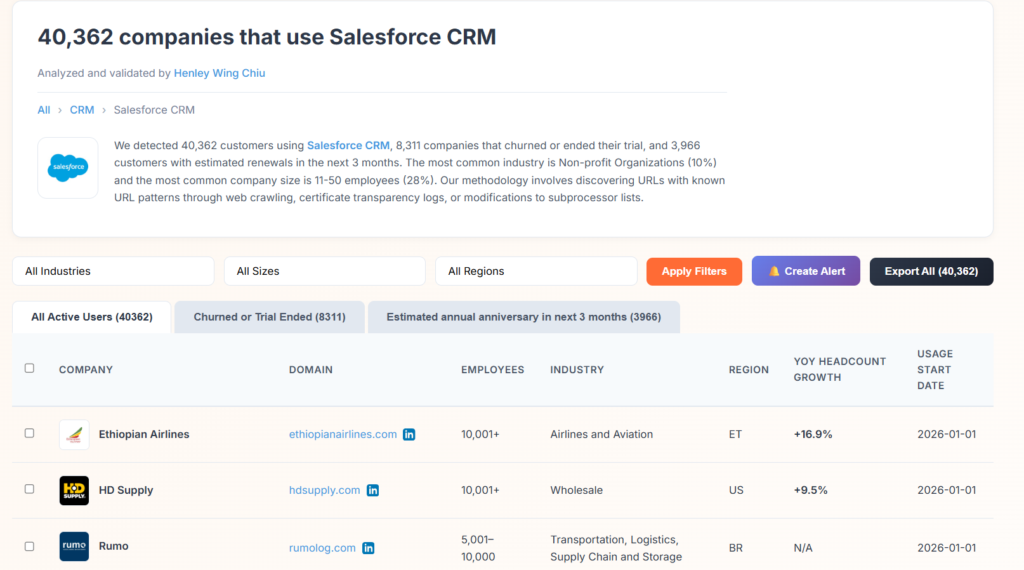
For instance, when I searched for companies that used Salesforce CRM, Bloomberry detected 40,000+ companies that were currently using Salesforce. Companies where their sales teams are actually using Salesforce as a CRM.
Wappalyzer, on the other hand, is only able to detect companies that show a visible footprint of using Salesforce on their website. This could be anything from using a Salesforce chat or customer service widget (Salesforce Service Cloud), or an analytics tracking script (ie Pardot).
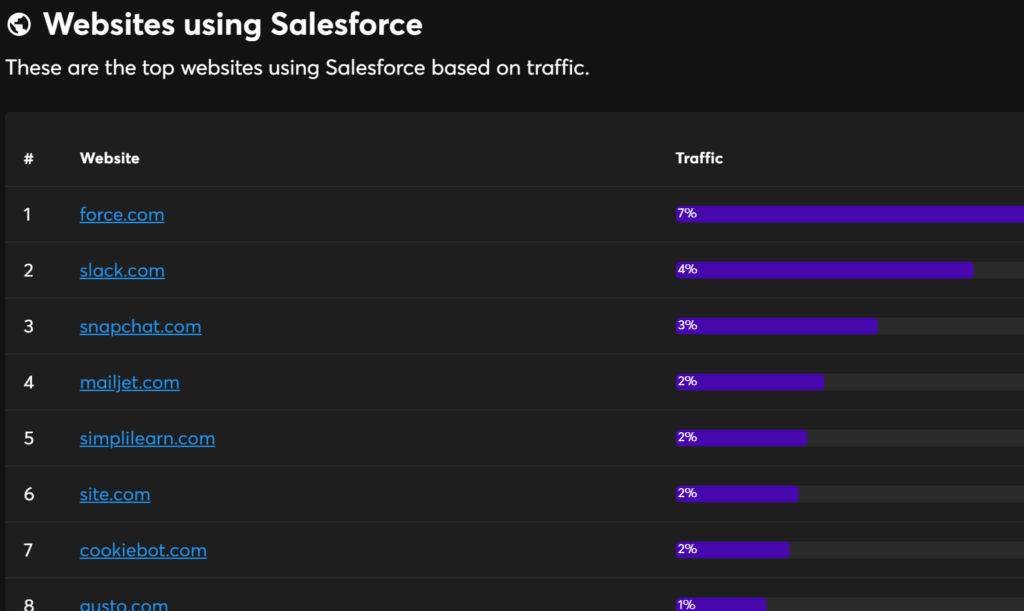
The problem with that? You’re not actually finding Salesforce CRM users – you’re finding companies that happen to use some Salesforce-adjacent tool on their website. That’s a very different audience. If you’re selling a Salesforce integration or a competing CRM, the Wappalyzer list won’t get you where you need to go.
For many products, Bloomberry also tracks in real-time when a company first starts using that product, and when they churned from it.
In the Salesforce example, you not only get the list of companies using Salesforce, but you can get an alert that will notify you via email or Slack when a new company was detected using it, or when a new company was detected dropping it.
For sales teams, without adoption and churn signals, you’re working off a static list with no sense of timing. If you’re selling Salesforce consulting or implementation services, don’t you want to know when a company just started using Salesforce?
That’s the perfect moment to reach out – they’re new to the platform, probably overwhelmed, and actively looking for help.
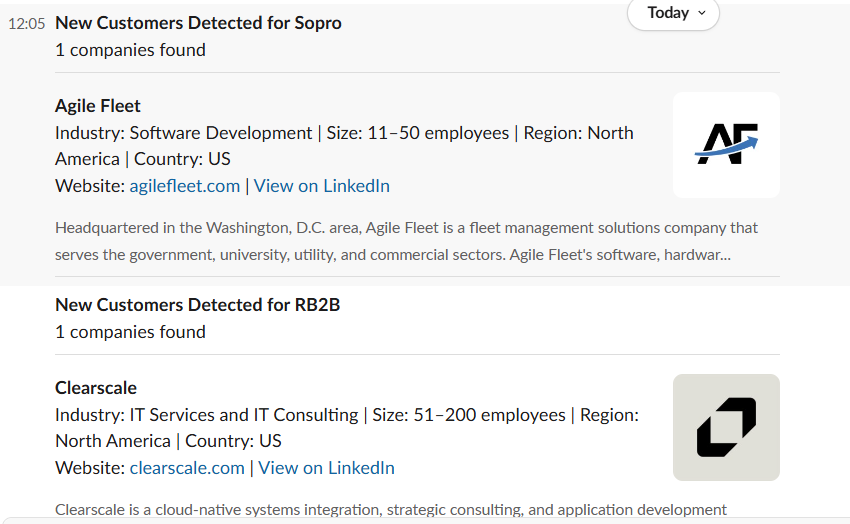
Here’s an example of a Slack alert that’s sent when Bloomberry detects a new or churned customer for a particular vendor:
Limitations
Bloomberry’s coverage is focused rather than exhaustive. Because it prioritizes real-time accuracy and is geared toward sales and GTM teams, it doesn’t track every website in existence – small blogs and one-person companies typically aren’t in the database. Instead, it focuses on companies that are likely buyers of software – ie. companies with at least 5 employees.
Lastly, Bloomberry has limited coverage of Javascript frameworks, CMSes and WordPress plugins. Though they do have some coverage, they focus primarily on enterprise technologies (ie CRMs like Hubspot or Attio). So if you’re looking to build lists of websites that use JQuery, or ReactJS, you’re better off sticking with Wappalyzer, or using one of the products in the next section.
Click here to read a more detailed comparison between Bloomberry and Wappalyzer.
Pricing
Paid plans for Bloomberry start at $199/month for access to 2 vendors. There’s also a free trial with no credit card required.
| Plan | Price | Features | Limitations |
|---|---|---|---|
| App Access | $199/month | Data for 2 vendors (change once per month) Complete, real-time data Unlimited exports Up to 20 users Email support | No API access |
| API Access | $199/month | API access to all vendors Access to all API endpoints 6,633 API credits per month Complete, real-time data Email support | No App access |
2. BuiltWith – Best For Frontend Tech Detection
Pros: Good for building large lead lists of companies that use a specific front-end technology.
Cons: A significant percentage of their data is inaccurate or lags behind. Only use it if you’re not concerned with accuracy.
No Wappalyzer alternatives article would be complete without mentioning the OG in this space: BuiltWith – the most widely recommended tool for identifying what technologies a website uses.
Unlike Wappalyzer, BuiltWith takes a different approach in gathering its data. While Wappalyzer relies heavily on crowdsourced data from its 2.5M+ browser extension users (supplemented by their own crawlers), BuiltWith primarily uses periodic crawls to build comprehensive lists of technology users.
Wappalyzer’s approach means their data is often more up-to-date for client-side technologies on actively visited sites, while BuiltWith’s crawl-based method provides broader coverage of the web – including sites that Wappalyzer’s users may never visit.
Here’s a good example that illustrates this difference. Let’s say you’re interested in knowing which companies are using Stripe (the payment processor). Wappalyzer currently shows 300,000+ websites using Stripe, while BuiltWith shows more than 1,3000,000 websites using Stripe.
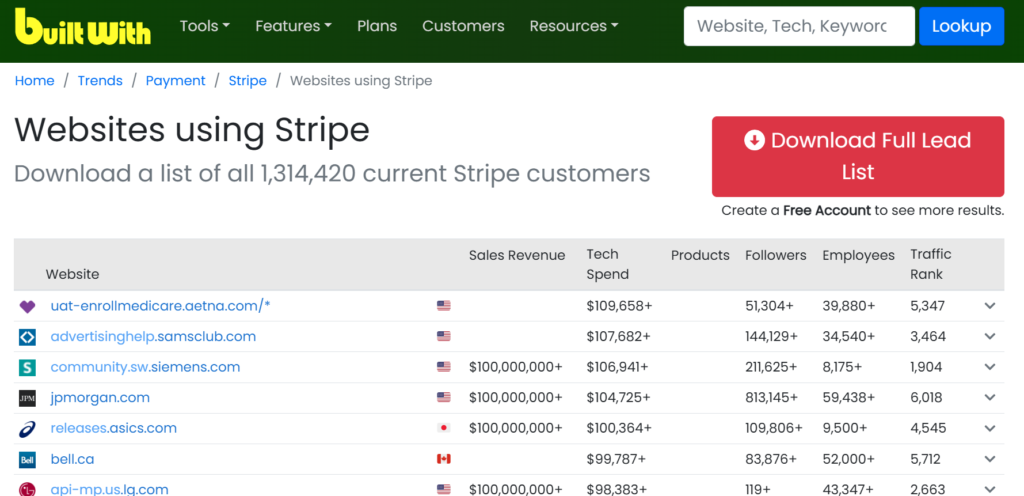
That’s over 4x more coverage. The difference? BuiltWith’s crawlers systematically scan millions of sites regardless of whether anyone with an extension has ever visited them. For a sales team building a prospect list of Stripe users, that’s potentially a million additional leads they’d miss by relying on Wappalyzer alone.
The tradeoff? BuiltWith’s data can lag behind reality. Some of those 1.3 million sites may have switched away from Stripe weeks ago, but BuiltWith’s crawlers haven’t caught up yet. Here’s an example of a site that removed Yotpo, a loyalty management tool on December 1, 2025 (It’s January 2 today), yet BuiltWith still claims that they’re using they’re using it.

Wappalyzer’s crowdsourced model tends to reflect changes faster—at least for popular sites that extension users visit regularly.
So when should you choose BuiltWith over Wappalyzer? If you’re running outbound campaigns and need the largest possible list of companies using a specific technology, care more about coverage than perfect accuracy, and have the resources to handle some outdated leads in your pipeline, then BuiltWith probably makes more sense.
Limitations
BuiltWith has 2 major limitations. As mentioned, their crawl-based approach means some changes take longer to appear (whether it’s new installs or churns). Second, like Wappalyzer, they only detect technologies visible on a website: ie. Shopify apps, martech, adtech, and ecommerce applications. If you’re looking to build lead lists of companies using AI tools like ChatGPT, security tools, devops tools, ERPs or anything not visible on the frontend, BuiltWith won’t help you.
Pricing
| Plan | Price | Technologies | Keywords | Retail Reports | Logins |
|---|---|---|---|---|---|
| Basic | $295/month | 2 | 2 | 2 | 1 |
| Pro | $495/month | Unlimited | Unlimited | Unlimited | 1 |
| Team | $995/month | Unlimited | Unlimited | Unlimited | Unlimited |
3. WhatRuns – a 100% free browser extension
Pros: It’s 100% free
Cons: The coverage is incredibly sparse, and they’re missing a lot of technologies
If both Bloomberry and BuiltWith are too expensive for you, WhatRuns is a 100% free Wappalyzer alternative, with a completely free browser extension for instant technology identification.
Like Wappalyzer, you simply visit a website, click the extension icon, and it displays the detected technologies. When I visited unifygtm.com, for example, it shows me the screenshot below.
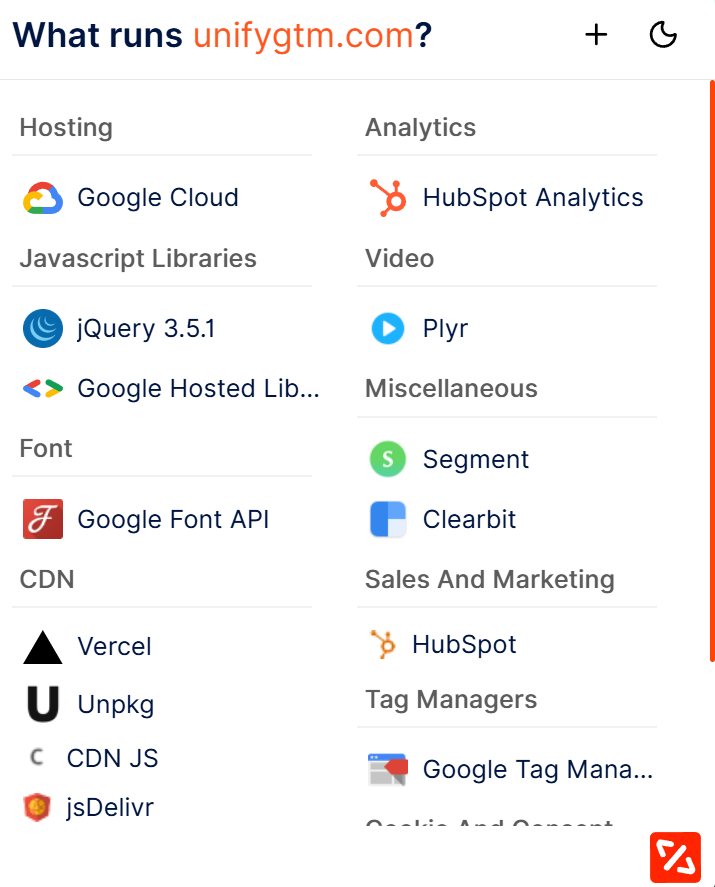
All the technologies are grouped rather nicely by functionality, ie. Hosting, Javascript Libraries, Font packages, CDNs, Analytics, Tag Managers, etc. And when I checked all the scripts that were actually running on unifygtm.com, they all seemed very accurate.
WhatRuns did miss a fair share of technologies that Bloomberry, BuiltWith and Wappalyzer found though. For instance, it couldn’t detect Navattic, Amplitude, Default, Vector.co, or RB2B (Amplitude probably was the biggest miss, as it’s one of the biggest analytics tools I would’ve expected it to find).
Unlike Wappalyzer, which now limits free users to basic detection and reserves advanced features for paid plans, WhatRuns remains completely free with no feature gating. That’s a meaningful advantage if you’re doing occasional research rather than daily prospecting.
For casual users, sales reps doing quick competitive research, or anyone who doesn’t need exhaustive detection, WhatRuns is a solid choice. Power users doing deep tech stack analysis will likely want to pair it with a more comprehensive paid tool to fill in the ga
Limitations
Coverage is noticeably thinner than paid alternatives. In testing, WhatRuns missed some widely used tools like Amplitude. You’re getting what you pay for. For more complete coverage or any serious prospecting and research, one of the other tools on this list is likely a better fit.
Pricing
100% free.
4. SimilarTech – another free browser extension
Pros: It’s 100% free to use
Cons: It can be very inaccurate at times.
SimilarTech is a browser extension from SimilarWeb, the traffic analytics platform. Unlike SimilarWeb though, SimilarTech is 100% free to use.
When I downloaded it from the Chrome Web Store, it gave me this list of technologies, grouped by category when I visited unifygtm.com
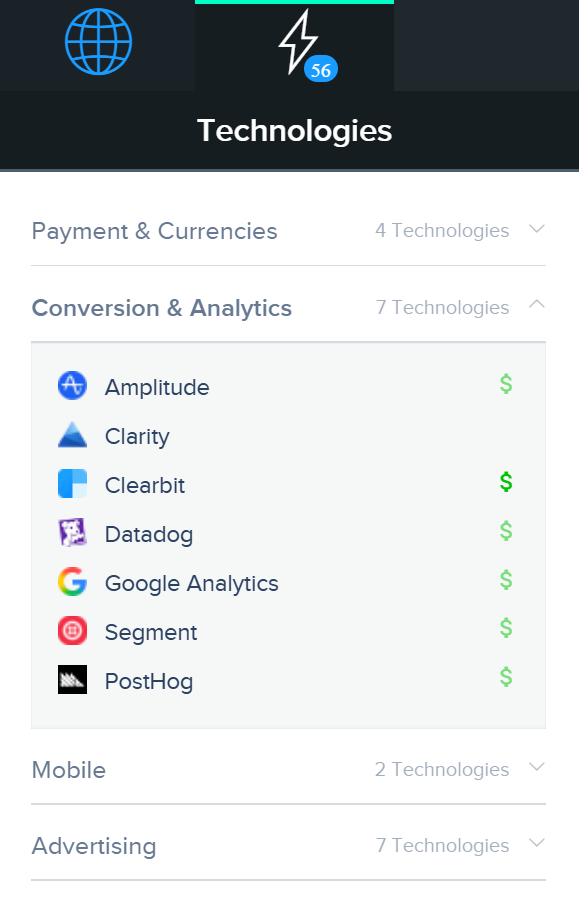
As you can see, the technologies are neatly grouped into clean categories like “Payment & Currencies”, “Conversion & Analytics” and “Advertising” . One nice touch is that they have a $ next to each product to indicate whether it’s a paid or free product. So products like Microsoft Clarity are shown as a free product, while Clearbit is paid.
In my brief testing though, I clearly saw some inaccuracies in their data. When I used it to on bloomberry.com, it showed us as using Snowplow, Instagram, and Shopify, all of which we clearly were not using.
I’m not sure how they were detecting technologies (my guess is they were doing some very simple string regex), but a significant # of technologies were simply not accurate at all.
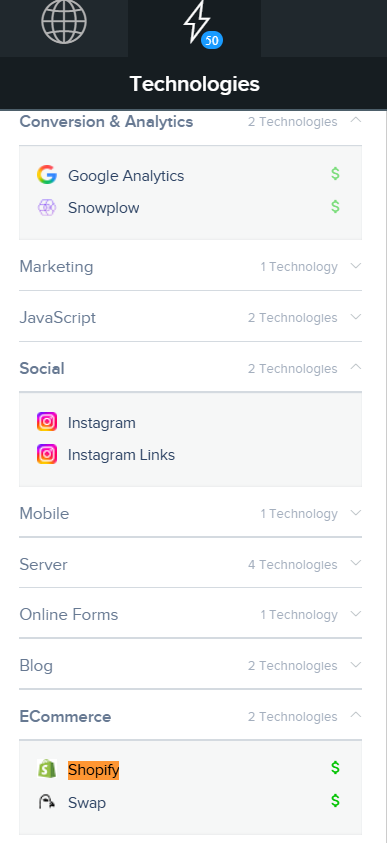
So like WhatRuns, you’re pretty much getting what you paid for here – which is nothing. If you’re on a budget, and can’t afford to pay anything, WhatRuns and SimilarTech are two options for you.
Pricing
SimilarTech is 100% free.
5. StoreLeads – best for detecting Shopify stores
Pros: You can find millions of Shopify stores that use a specific app
Cons: It won’t be useful if you’re not targeting ecommerce stores
If you’re doing prospecting for Shopify stores (or any ecommerce store like WooCommerce), then StoreLeads is the right tool for you. As their name suggests, they focus primarily on ecommerce stores.
When I signed up for an account (100% free to try btw), I saw lots of filtering options. But perhaps the most useful if you’re doing any sort of prospecting is finding stores that installed a specific Shopify app.
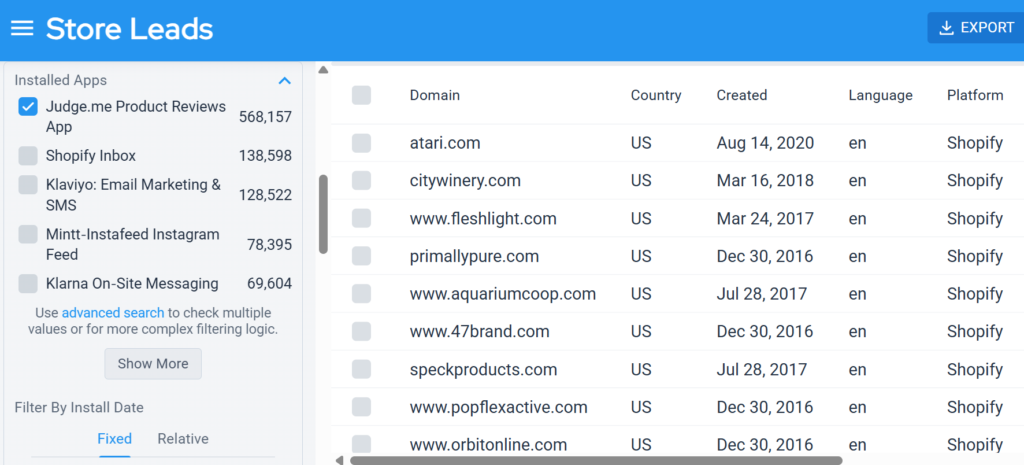
In my case, I tried searching for stores that had the Judge.me app, and it gave me over 560,000 stores back, with enriched data like when the store was created, when the app was installed, and whether it was still active or not. This is a goldmine of data if you’re building a Shopify app and want to target stores that just installed your competitor’s app.
Aside from that, they also had options to filter by stores based on a certain country and what currency they used (stuff they probably inferred from meta.json). This is also really useful if you just want to target stores based in a certain country.
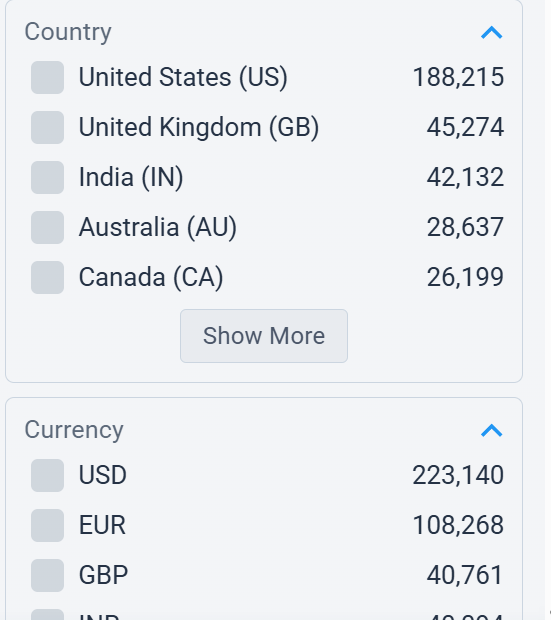
The accurate was also fairly solid based on the few checks I did. They update their data once every week (at the time I tested it, this might change). Overall, StoreLeads is a solid option if you’re doing prospecting on ecommerce stores.
Limitations
Their obvious limitation is that since they focus only on ecommerce stores, if that is not your ICP, then StoreLeads is going to be useless for you.
Pricing
| Plan | Price | Platforms | Seats | Exports / CRM / API |
|---|---|---|---|---|
| Free | $0/month | Limited preview | 1 | No exports |
| Premium | $75/month | 2 platforms | 1 | No exports |
| Pro | $250/month | 2 platforms | 2 | ✓ CSV exports ✓ CRM sync ✓ API access |
| Elite | $450/month | All platforms | 5 | All Pro features + ✓ Calculated values in exports |
| Enterprise | $950/month | All platforms | 20 | All Elite features + ✓ Advanced CRM features |
Additional seats: $35/seat/month. 15% discount available with yearly plans.
6. WPOptic – ideal for finding out what WordPress plugins a site uses
Pros: It’s the best at WordPress plugin detection
Cons: It doesn’t have much coverage beyond WordPress
WPOptic is a brand new tool that literally launched a few weeks ago. I found it while doom-scrolling through my LinkedIn feed one day. The creator mentioned he spent 12 months and over $30k building the entire system, and based on my experience using it, it definitely seems like a solid option.
Unlike Wappalyzer and other tools listed here, WPOptic does 1 thing and 1 thing extremely well: It detects WordPress plugins and technologies a website uses, *and* tells you what sites uses a specific WordPress plugin – over 30,000 of them.
Like BuiltWith and Wappalyzer, WPOptic also offers a free browser extension for Chrome, Edge, and Brave that detects WordPress plugins in milliseconds.
When I installed the extension and visited my own site, the results were pretty accurate. It instantly surfaced plugins I wouldn’t have found with Wappalyzer – things like Monster Insights (A Google Analytics plugin), Autoptimize (for optimizing page speed) and Contact Form 7 (a contact form plugin)
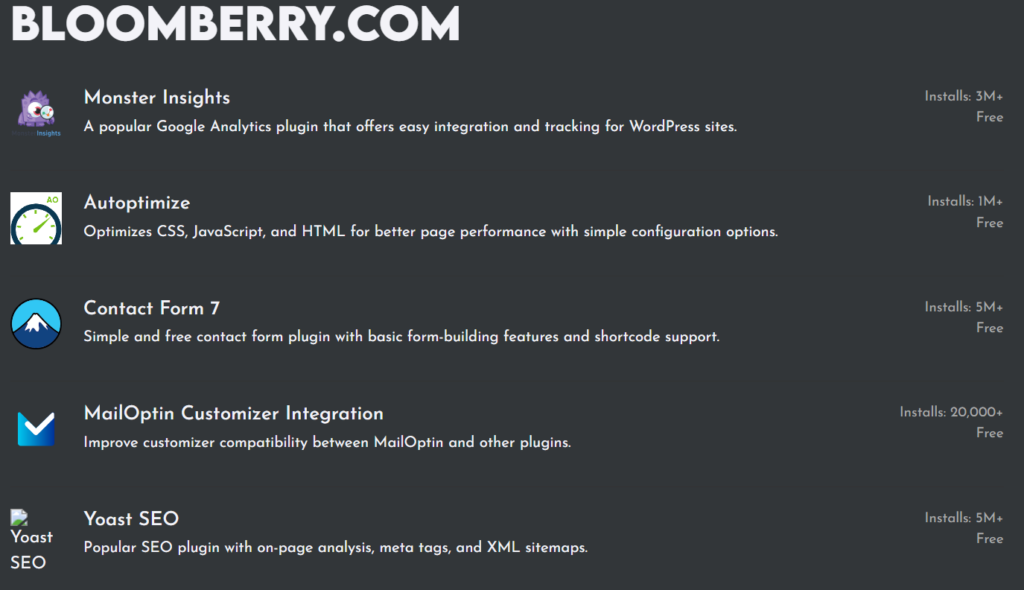
This can be incredibly useful if you’re doing any sort of competitor analysis. Let’s say you find a competitor ranking above you for a keyword, and you want to see exactly what plugins they have installed. For instance, you can see whether they installed a page speed plugin that makes their pages load faster than yours, or a SEO plugin that suggests more relevant keywords.
Beyond the browser extension, WPoptic also lets you generate lead lists of websites using specific WordPress plugins. Want a list of every site running WooCommerce? Or sites using a niche form plugin you’re trying to displace? WPoptic can build that list for you, filtered by country, language, WordPress version, and even website traffic levels. If you’re building any sort of tool that competes with a WordPress plugin, this is pretty damn useful.
Their database currently tracks over 13 million WordPress websites and can detect plugins across categories like SEO (Yoast), forms (Contact Form 7), page builders (Elementor), ecommerce (WooCommerce), and more.
Limitations
WPoptic is laser-focused on WordPress, so if you need to detect technologies on non-WordPress sites, you’ll need a different tool. It also won’t help you find backend B2B software like CRMs or AI tools – it’s purely for WordPress plugin and theme detection. Not a flaw, by any means, but simply what they specialize in.
Pricing
| Plan | Price | Export Credits/Mo | Users | Support |
|---|---|---|---|---|
| Free | $0/month | 100 | 1 | — |
| Starter | ~$150/month | 5,000 | 1 | |
| Business | ~$350/month | 25,000 | 5 | |
| Enterprise | ~$850/month | 200,000 | Unlimited | Account Manager |
Prices listed in EUR (€125/€299/€799), USD approximations shown. 1 credit = 1 URL export. Pay-as-you-go also available.
7. TechPeeker – best for lead generation based on CMS and frameworks
Pros: It’s good at detecting CMS platforms and Javascript frameworks, and it’s much cheaper than Wappalyzer or BuiltWith
Cons: Outside of that, the coverage of frontend tech isn’t as deep as Wappalyzer or Builtwith
TechPeeker is a newer player in the technology intelligence space, and it’s particularly well-suited for building lead lists based on frontend technologies like JavaScript frameworks and CMS platforms. It currently covers more than 17 million websites and 800+ technologies.
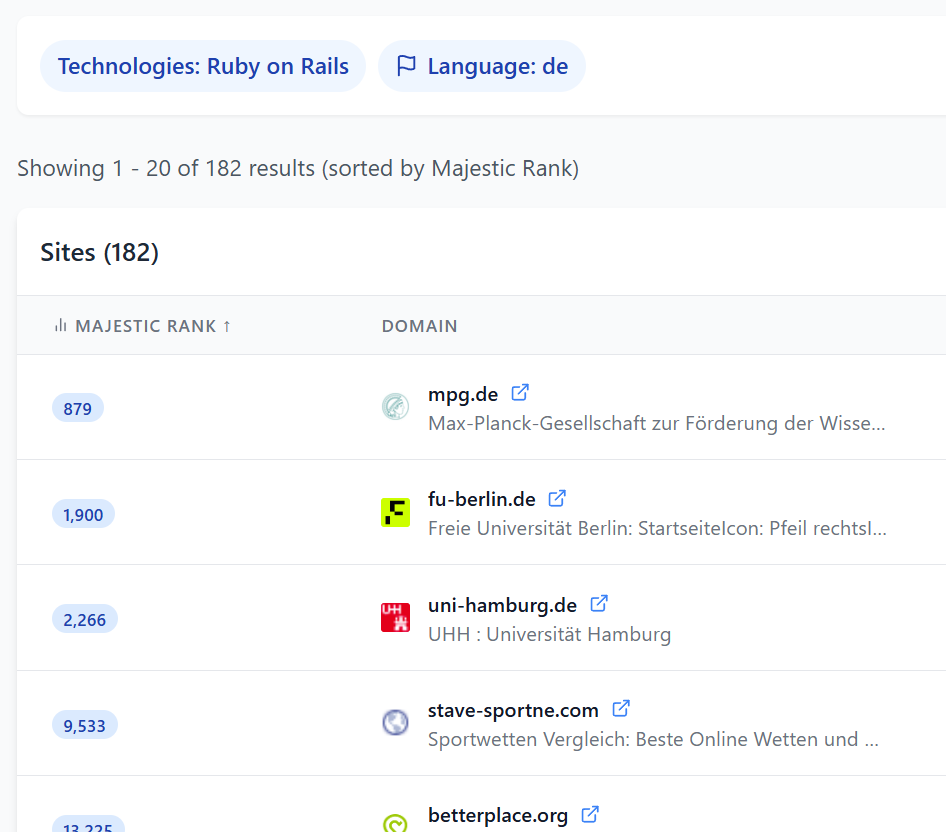
The UI is minimal and easy to navigate. When you run a search, you can layer on multiple filters: technology type, domain suffix, language, and site popularity. I tested it by looking for Ruby on Rails sites in German, and it returned 182 results ranked by Majestic score.
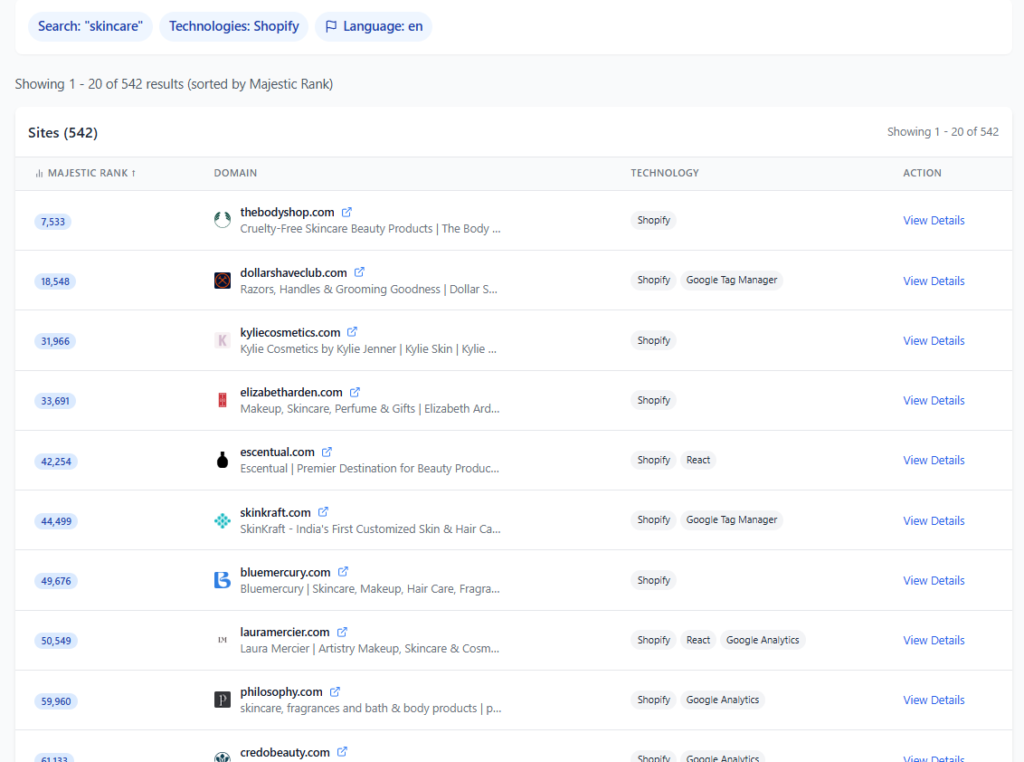
What sets TechPeeker apart is its keyword filtering. You can search for sites that contain specific terms in their title or meta description, which makes it easy to zero in on a niche. I tried searching for Shopify stores with “skincare” in their metadata, and the results were spot-on: a clean list of ecommerce sites selling skincare products. If you’re prospecting within a specific vertical, this feature alone could save you hours of manual filtering.
Technology detection covers the usual suspects: WordPress, Shopify, Magento, Drupal on the CMS side, and React, Vue.js, Angular, Next.js, Nuxt.js, and Svelte for frameworks. It also picks up backend frameworks like Laravel and Ruby on Rails, though detection is limited to what’s visible on the frontend.
Each result includes a Majestic Rank, which reflects domain authority based on backlink profile. This is helpful for segmenting your outreach – you can prioritize high-authority sites if you’re going after enterprise accounts, or filter for lower-ranked sites if you want to target smaller businesses that aren’t drowning in sales emails.
TechPeeker also has a handful of free standalone tools: detectors for Shopify themes, WordPress themes, Shopify apps, and general CMS identification. These work without an account and are handy for quick lookups.
Limitations
TechPeeker is focused on web-facing technologies. It won’t help you find companies running Salesforce, HubSpot CRM, or other backend tools that don’t expose themselves in a site’s source code. If backend detection matters to you, Bloomberry might be a better choice.
Pricing
TechPeeker starts at $99/month, with a Business plan at $149/month that adds API access and bulk enrichment. That’s considerably cheaper than BuiltWith or Wappalyzer Pro for comparable frontend data, which is the main reason to pick it over either.
| Plan | Price | Tech Lists | Keyword Searches | Team / Support |
|---|---|---|---|---|
| Starter | $99/month | Limited | Limited | 1 member Email support |
| Business | $149/month | Unlimited | Unlimited | Priority email support API access Bulk enrichment |
| Enterprise | Custom | Unlimited | Unlimited | Multiple members Dedicated account manager Bulk data purchase |
All plans include advanced filtering across 17M+ websites and 800+ technologies. Discounts available on yearly plans. One-time purchases also available.
8. JobsPipe – good for job posting technographics
Pros: It can detect backend/backoffice technologies that aren’t visible in the frontend, and it’s API-first with a generous free tier
Cons: Accuracy rates can be low as job postings sometimes mention technologies they don’t use
JobsPipe takes a different approach to most tools on this list: they aggregate, normalize and de-duplicate live job postings from 30+ sources (LinkedIn, Y Combinator, and lots of ATS systems like Greenhouse, Lever, Ashby and Workday) into one schema, and let you find companies that mention a specific technology in their job postings.
Because it scans job postings for technologies, it’ll detect things that Wappalyzer will never find, no matter how deep or wide they crawl websites. That’s because there are many technologies that won’t leave a single footprint on a company’s website. Such as what HR platform they use, or what they use for compliance, or what identity access management tools they use.
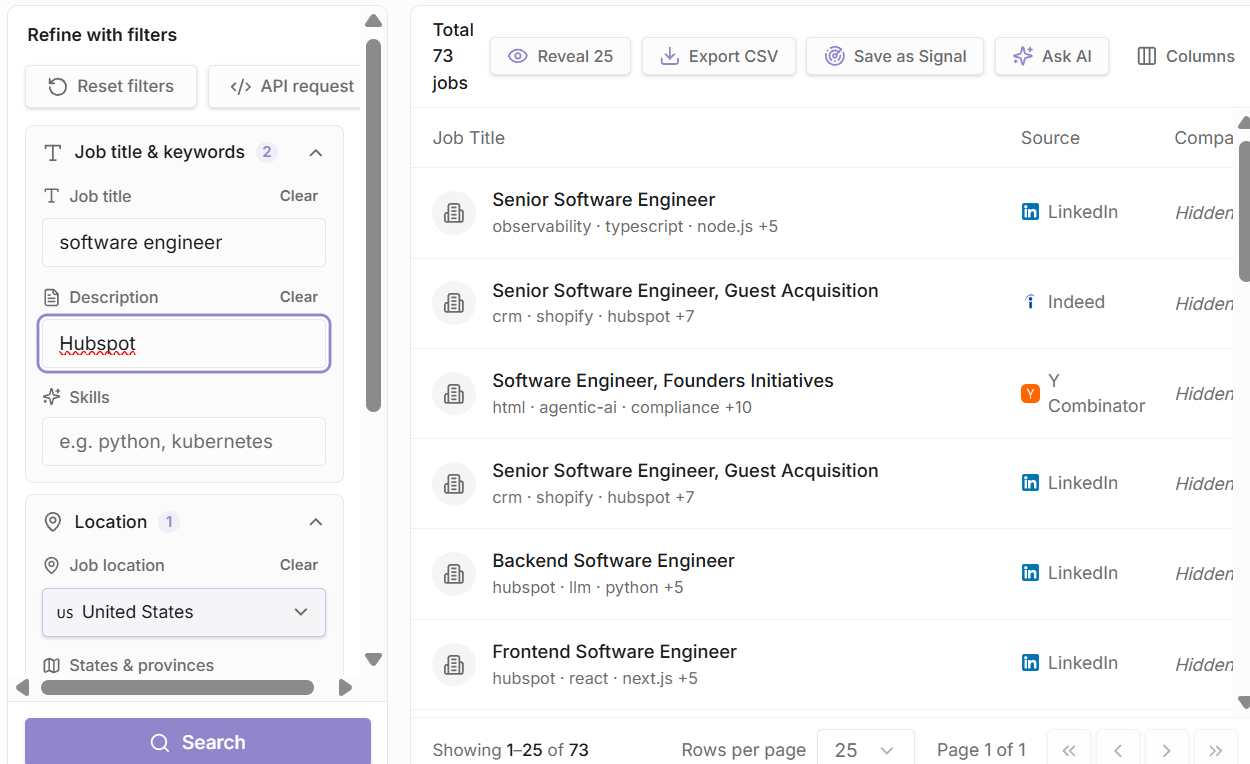
Let me show you what I mean with an example. Let’s say I’m interested in finding companies in the US that use Hubspot. I went to their search UI, entered “Hubspot” in the description, limited the location to “United States” and it shows me 11,743 jobs that mention Hubspot anywhere in the job description.
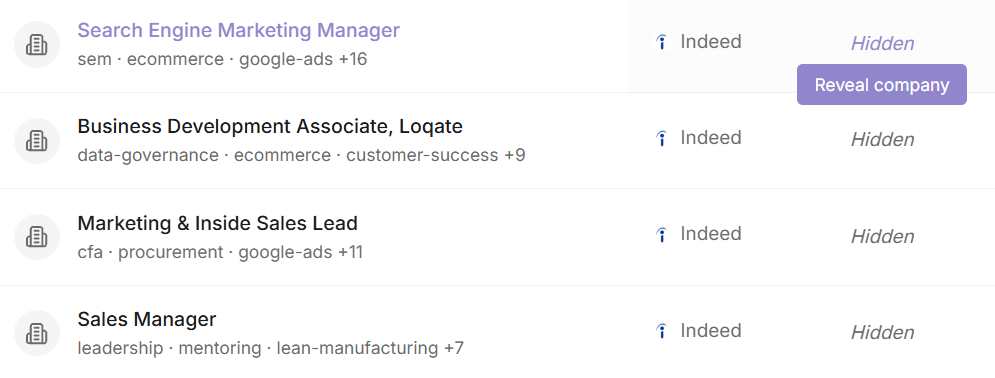
The neat thing is that you only pay for the specific rows you want. So let’s say, theoretically, I’m interested in just the first job posting. I would click “Reveal” next to that row and it uses just 1 credit to show me the company, as shown in the screenshot below. Of course, you can choose to export the entire list too, which will use up the same number of credits as the number of rows present.
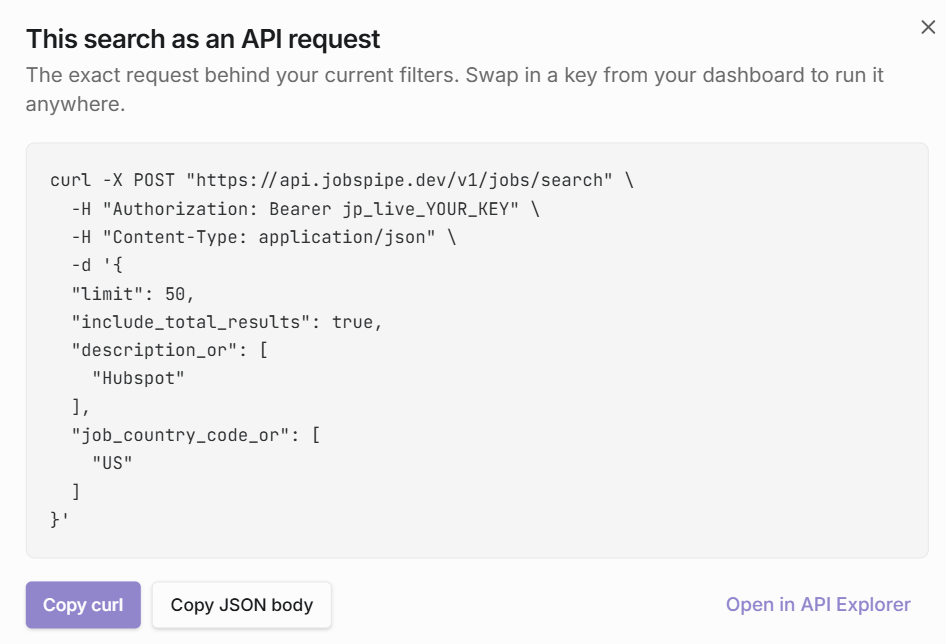
While JobsPipe has a dashboard, it’s especially built for the person building applications like a job board, or building a workflow such as a GTM workflow to find leads. That’s because they have an API, and an MCP server you can connect Claude with. In fact, in the search UI, if you click on the “API Request” button, they’ll convert all the search filters you choose into an API call you can make in your application (screenshot shown below).
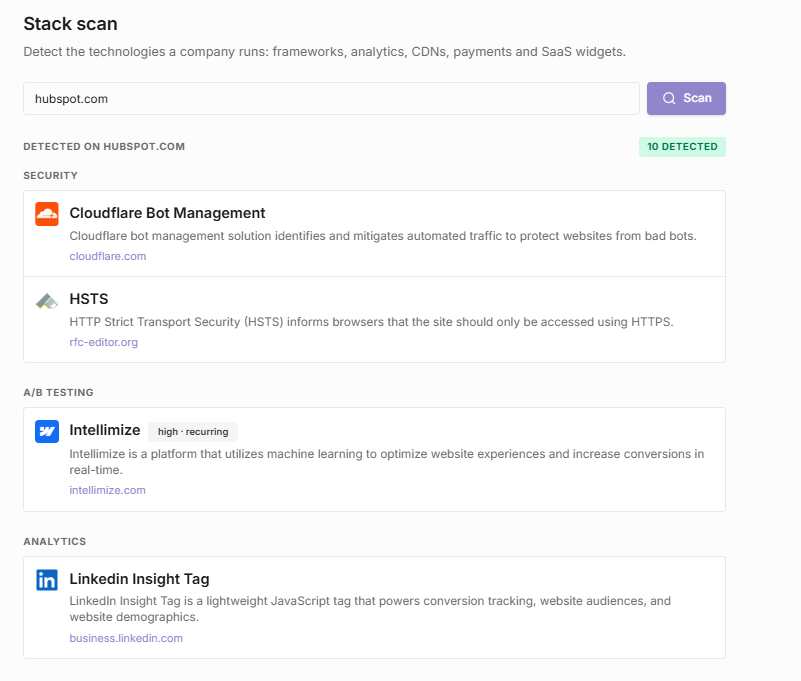
JobsPipe also has a separate tech-stack scan endpoint that works with the reverse use-case (finding what technologies a company runs). You give it a domain such as hubspot.com and it returns the technologies it detects that that company uses on their website. Keep in mind, this isn’t the technologies that are present on their job postings, but rather what JobsPipe could detect from scanning their website. You can see a screenshot below.
Limitations
The limitations here are inherent to job-posting data rather than anything specific to JobsPipe. The main one is that a mention is a mention. Job descriptions get written by recruiters, and they’ll often list the whole stack a team touches, or requirements carried over from an older posting. But this might not matter to some people. For example, if you’re targeting companies that mention “Hubspot” in a job posting, you might just care if they simply do marketing automation (which they are likely to be doing if they mention Hubspot).
Timing is the other thing to keep in mind. Companies often mention a technology in postings long after they adopted it, so this isn’t the right source for catching recent adopters. If you’re a Salesforce consulting company hunting for fresh implementations, job postings will mostly point you at companies that rolled it out years ago. If you absolutely need to know when a company started using Hubspot, JobsPipe probably isn’t the tool for you.
Where JobsPipe shines is account research and automation. If you’re already talking to a prospect and want a read on their stack, their postings will surface what they’ve mentioned. And if you’re building on top of technographic data, having a REST API, an MCP server and real SDKs matters a lot more than a pretty UI.
Pricing
JobsPipe is credit-based, and the meter is one credit per job returned rather than per search. That means a query returning 500 rows costs 500 credits, which is why the “Reveal” behaviour above matters: you can pull a single row for a single credit instead of paying for the whole result set.
The free tier is genuinely usable for evaluation at 1,000 jobs per month, and every source is available on every plan including free. There’s also a no-key sandbox at /v1/sandbox/jobs/search that accepts the same filters as the live endpoint, so you can check the request and response shape before you even sign up.
Crawl cadence runs 6 to 24 hours depending on the source, and real-time webhooks that push new postings as they appear are included on the paid tiers.
| Plan | Price | Jobs/Mo | Per 1,000 | Key Features |
|---|---|---|---|---|
| Free | $0/month | 1,000 | Free | All 30+ sources included Jobs search + tech-stack scan REST API and hosted MCP server No-key sandbox at /v1/sandbox API key in 30 seconds, no sales call |
| Builder | $49/month | 25,000 | $1.96 | All Free features + Real-time webhooks on new and closed postings Higher rate limits Official Python and Go SDKs Insights endpoints (demand, compensation, skills) |
| Scale | $349/month | 300,000 | $1.16 | All Builder features + Highest rate limits Best per-job rate Suited to production workloads Custom quotes above this volume |
1 credit = 1 job returned. Live LinkedIn searches from the dashboard cost 5 credits. Every source is available on every plan, including Free. One-time credit packs also available, and volumes above 300,000 are quoted.
9. NerdyData – best for power users searching for something very obscure
Pros: It can help find obscure things that other tools fail at
Cons: It’s not as user friendly to use as all the other tools listed here.
While most of the other tools on this list will satisfy 99% of use cases, there’s the 1% where it’s almost impossible to find websites that match your criteria. That’s where NerdyData becomes extremely useful.
The concept is simple but powerful. You search for an exact string (or regular expression), and NerdyData finds every site that has that exact string anywhere on the page. It’s like doing Ctrl+F across millions of websites.
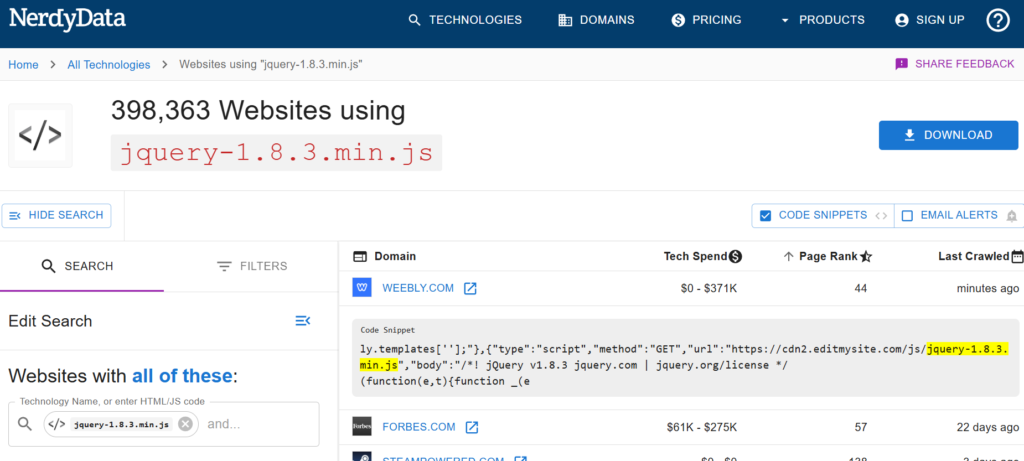
As an example, let’s say I want to find all sites using jQuery, a JavaScript framework. That’s an easy use case for Wappalyzer or BuiltWith. But what if you wanted to find all sites using a specific version of jQuery? Let’s say you’re a security consulting company, and you’ve discovered that a particular version has a known vulnerability. You want to contact every website running that version.
Well, there’s no way to find such sites with traditional tech lookup tools. With NerdyData, it’s just a simple search. For example, when I searched for “jquery-1.8.3.min.js”, NerdyData showed me 398,363 websites that had that string anywhere in the HTML source of their website – most of which presumably were running that specific version of JQuery.
Here are a few other use cases where NerdyData shines over the alternatives:
Finding companies on free tiers of SaaS tools. Many tools display “Powered by [Tool Name]” in their widget footers, especially on free plans. Typeform, Calendly, Discourse, Teachable, Zendesk – they all do this. NerdyData lets you search for that exact string and find every website displaying it. These are likely free-tier users who might be ready to upgrade to a paid competitor.
Wappalyzer and BuiltWith can detect the technology itself, but it can’t distinguish between paying enterprise customers and free users stuck with the branded widget.
Competitive displacement for specific product versions. Similar to the jQuery example, if you know a competitor’s older script version is being deprecated or has issues, you can search for that exact filename and build a hyper-targeted list. “Hey, we noticed you’re running v2.3 which is being sunset next quarter – here’s how we can help you migrate.”
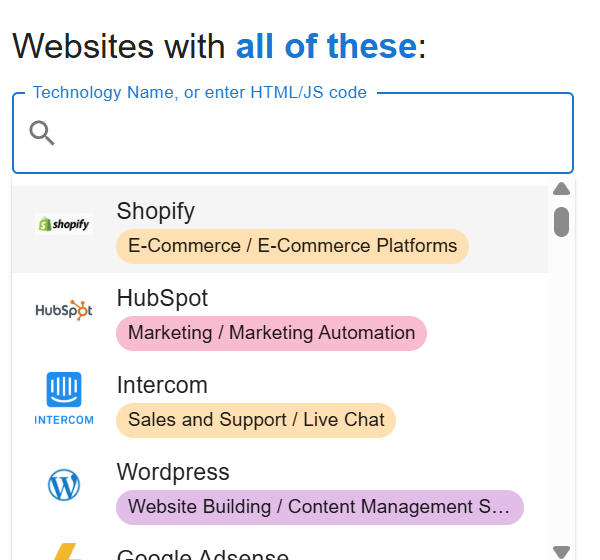
For those that are used to a more traditional search, NerdyData also offers a more user friendly search. You can also choose to search by product instead, as shown in the screenshot below.
Limitations
While I love the powerful search nature of NerdyData, in my trial, I did notice a few inaccuracies in how they detect technologies for a website.
For example, when I searched for companies using Intercom, they seemed to do some sort of regular expression matching, looking for companies that have “intercomSetting” somewhere in their HTML source. This gave results like SSRN.com, which showed no signs of having Intercom installed anywhere.
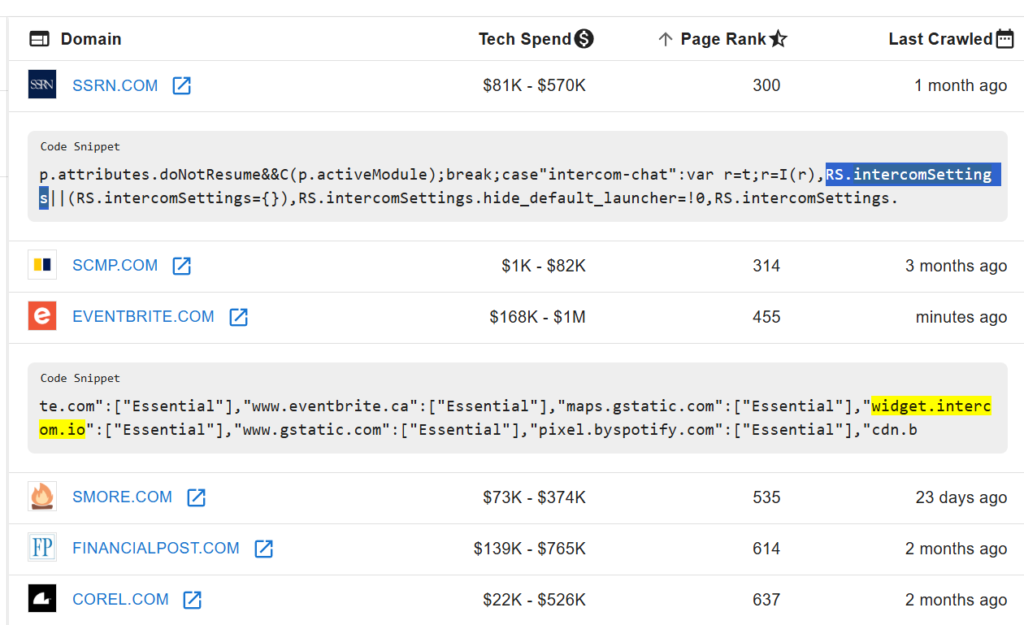
In addition, if you look at the screenshot above, you’ll see that NerdyData takes quite awhile to crawl sites. Some of the sites weren’t crawled for almost 2 months. So if you’re looking for fresh, up-to-date data, then I probably wouldn’t use NerdyData.
Pricing
NerdyData offers two pricing models: one-time reports or monthly subscriptions.
If you just need a single list, you can purchase individual reports for $75 each on the free plan – no subscription required. This is great if you have one specific search in mind and don’t need ongoing access.
For heavier usage, their unlimited monthly plans start at $295/month, which lets you download as many reports as you want. They also offer a 20% discount if you pay annually.
There’s also a free tier that lets you run unlimited searches and see the total result count, but you’re capped at viewing the first 50 rows per report. This is useful for validating whether your search will return enough results before you commit any money.
| Plan | Price | Rows/Report | Downloads | Key Features |
|---|---|---|---|---|
| Free | $0/month | 50 | Limited | Unlimited free searches (view total results) All advanced filters & operators Single report purchase for $75 Browser extension (free) Gmail add-on (free) |
| Solo | From $295/month | 5,000 | Unlimited | All Free features + Unlimited report downloads Boolean operators (AND / OR / NOT) Country, domain, tech spend, industry filters Source code search (HTML, JS, CSS, cookies, XHR) Domain enrichment (5,000 domains/mo) |
| Team | Up to $1,000/month | 1,000,000 | Unlimited | All Solo features + Multiple user logins Domain enrichment (10,000 domains/mo) All company filters Best for large data analysis teams & orgs |
| API | Pay-as-you-go | — | Usage-based | Not included with monthly subscription Usage-based pricing (pay for what you use) Programmatic access to NerdyData data Integration & automation support |
20% discount available for annual plans. Free account includes all advanced features with 50-row limit. Cancel anytime. Covers 20M+ websites and 1,000+ technologies.
10. URLScan.io – best for finding websites that use technologies often placed in gated/authenticated pages
Pros: It can find websites that have a technology that other tools can’t
Cons: It’s not very user friendly, and outside of very specific edge cases, it’s not useful for many purposes
You won’t find many people recommending URLScan.io in their “Wappalyzer alternatives” articles. And for good reason: it probably won’t be useful in 95% of your use cases.
But for the 5% where you need to find websites that use a specific technology that often gets inserted into gated or authenticated pages, URLScan.io can be your best option.
Here’s the thing about tools like Wappalyzer and BuiltWith: they typically crawl the homepage or a few public pages of a website. That works great for technologies that live on public-facing pages, things like Google Analytics, WordPress, or Shopify. But what about technologies that only get loaded after you log in?
Take Aptrinsic (now called Gainsight PX) as an example. It’s a product experience platform that helps SaaS companies track user behavior and deliver in-app guides and onboarding flows.
The catch? The Aptrinsic javascript only gets loaded inside the actual product, not on the marketing homepage. So if you’re trying to find companies using Aptrinsic to sell them consulting services or a competing product, Wappalyzer and BuiltWith are basically useless. They’ll never see that script because it’s behind a login wall.
This is where URLScan.io comes in.
URLScan.io was originally built as a security tool for analyzing suspicious websites. When you (or anyone) submits a URL to URLScan.io, it fires up a headless Chrome browser, visits that URL, and records everything: the domains contacted, the JavaScript files loaded, the CSS requested, cookies created, and even takes a screenshot. All of this data gets stored in a massive searchable database going back to 2016.
The magic happens because URLScan.io doesn’t just scan homepages. Users submit all kinds of URLs, including authenticated app pages, checkout flows, and internal dashboards. Security teams use it to analyze suspicious links from emails. And crucially, many security tools automatically submit URLs they encounter, which means URLScan.io ends up scanning pages that traditional crawlers would never see.
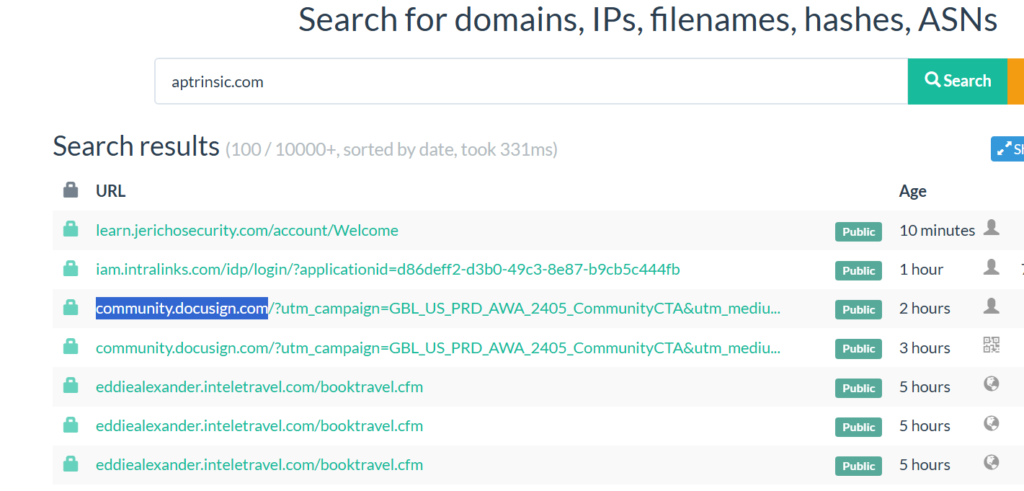
So when I searched for “aptrinsic.com” on URLScan.io, I found over 10,000 results, websites that had loaded the Aptrinsic javascript at some point. These are actual product pages from SaaS companies that use Aptrinsic for their in-app experiences. The results even show how recently each scan was performed, so you can filter for fresh data.
Stripe is another great example. Yes, Wappalyzer and BuiltWith can detect Stripe, but they’re mostly finding it on marketing pages where companies mention they accept payments or on pricing pages. The actual Stripe.js script often only loads on checkout pages, which are frequently behind some kind of authentication or cart flow that crawlers don’t reach.
With URLScan.io, you can search for domains that contacted “js.stripe.com” and find websites where someone actually went through a checkout process. That’s a fundamentally different (and arguably more valuable) signal than just detecting Stripe mentioned somewhere on a homepage.
How to Actually Use It
The search syntax takes a bit of getting used to. To find websites loading scripts from a specific domain, you’d search something like:
domain:aptrinsic.comto find any site that contacted Aptrinsicdomain:js.stripe.comto find sites loading Stripe’s javascriptdomain:cdn.segment.comto find Segment users
You can also combine searches with date filters to only see recent scans, which helps filter out stale data.
Limitations
Let’s be real: URLScan.io is not a traditional technology lookup tool, and it shows. The interface is clearly designed for security researchers, not sales teams. You’re going to see a lot of results that are just noise, phishing sites, test pages, and random scans that don’t represent real companies.
There’s also no way to easily export a clean lead list with company names and contact info like you’d get from BuiltWith or Bloomberry. You’re essentially getting raw URLs that you’ll need to clean up and enrich yourself.
And the data is inherently opportunistic. You’re only seeing websites that someone happened to submit to URLScan.io. Coverage is inconsistent, and there’s no guarantee that the companies you care about will show up.
But the goal of this article is to be comprehensive. For those edge cases where you need to find users of a technology that lives behind authentication? URLScan.io might be your only option. And that’s why it belongs in this list.
Pricing
The basic search functionality is free. URLScan.io offers a Pro tier for power users who need more advanced search capabilities, higher API limits, and access to unlisted scans.
11. DIY: Google Chrome Network Console + ChatGPT/Claude
Pros: It’s 100% free and can arguably be the most accurate way to find the technologies used by a website
Cons: It takes a few minutes to run for each website
I’ll be honest – I didn’t think of this option until I was forced to come up to round this list up to 10 tools. But as an experiment, I decided to give Anthropic Claude a prompt on what technologies it was able to detect for Apollo.io

The result? Claude gave me a short list of frontend technologies that seemed fairly accurate such as React, Next.JS, Google Analytics and Google Ads.
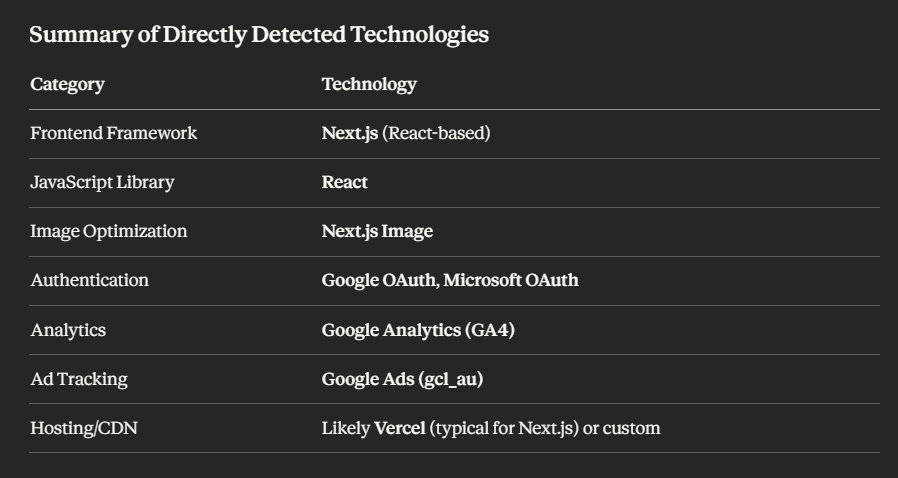
But this wasn’t nearly 100% comprehensive. Wappalyzer listed a lot more.
However, I thought, why not just copy and paste all the external calls and Javascript files loaded when I visit Apollo.io and give that as a prompt to ChatGPT or Claude, and get it to convert them to the actual technologies/vendors they use?
For the technically impaired (sorry, I don’t know what else to call you :), here are the exact steps: First, visit apollo.io in your browser, right click on the page, and choose “Inspect”

Next, go to the the “Console” tab. And enter this code: […new Set(performance.getEntriesByType(‘resource’).map(e => new URL(e.name).hostname))].filter(h => !h.includes(location.hostname)).sort().forEach(d => console.log(d))
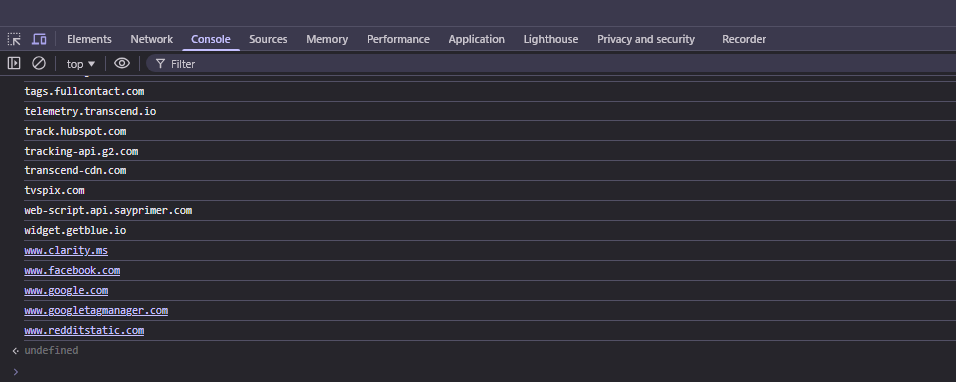
It should print out all the domains of all the Javascript and 3rd party calls the website makes. Now, copy and paste the entire list to Claude/ChatGPT and use this as a prompt:
“If a site loads these 3rd party domains, what vendors and technologies do they most likely use <LIST OF DOMAINS PASTED HERE>”
Don’t worry if the list isn’t properly formatted or includes other junk, ChatGPT and Claude most likely can still parse it out.
Now, I get a list of much more vendors back (all of which seem to be accurate based on my checks)
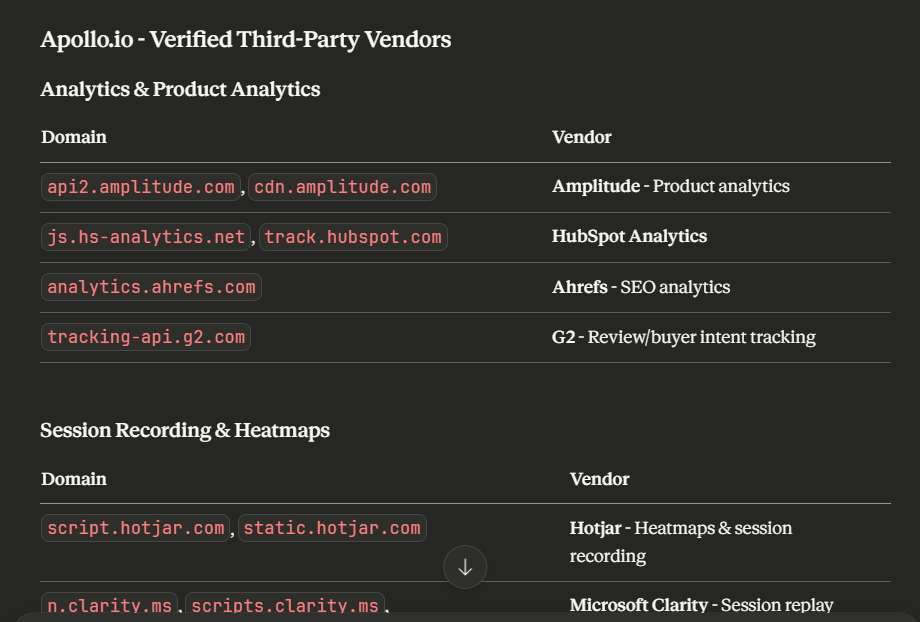
Does this take a few seconds? Yes, it’s probably not for the instant gratification crowd who is used to being fed answers in 1 click, but there’s a few advantages with this approach: 1) It’s free (minus the cost of paying ChatGPT and Claude of course) and 2) It returns a much more comprehensive list than Wappalyzer 3) It probably is more current too as new vendors appear.
If you’re interested in more free ways to find a company’s tech stack, I recently wrote a guide on how to do so here.
Free Open-Source Alternatives
For most of you, you probably wouldn’t use an open-source alternative to Wappalyzer unless you’re building some sort of application that needs to somehow use tech stack data. There are a few of these available, and I’m going to briefly go through my experience with some of them.
12 . Wappalyzer-Next
Wappalyzer-Next is a Python library that uses the same code as Wappalyzer. To use it, you need to first install Firefox and Gecko Driver, and either run it as a command line, or use it as a library.
Installation was fairly straightforward, and when I decided to run the command to analyze salesforce.com (wappalyzer -i https://salesforce.com -oJ results2.json to output the results to a JSON file), it gave me a list of technologies in JSON format. It does take awhile (maybe 20 seconds) to do a full analysis, but at the end, the technologies it gave me all were 100% identical what the Wappalyzer extension gave me.
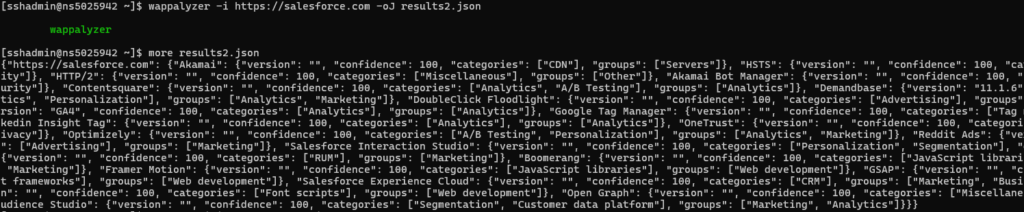
A nice added bonus was it also gave the confidence score for each technology, which is something I didn’t see in the official Wappalyzer extension.
However, when I ran it on bloomberry.com, it didn’t seem to return any technologies, even though the Wappalyzer extension showed a decent amount.

Overall, as a free alternative, it’s OK, but I’m not sure I would rely on this to do anything serious in production, given how unpredictable the results were, but maybe you might have better luck.
As mentioned, you could include this as a library too, though I didn’t do so during my test run.
13. WappalyzerGo
WappalyzerGo is a similar open-source alternative to Wappalyzer written in Go. Like Wappalyzer-Next, you do need to install some dependencies in order to start using it (namely Go).
When I tried to analyze Salesforce.com however, it returned just 3 technologies: Akamai Bot Manager, OneTrust and HSTS, which was a far cry from what the official Wappalyzer extension showed me.
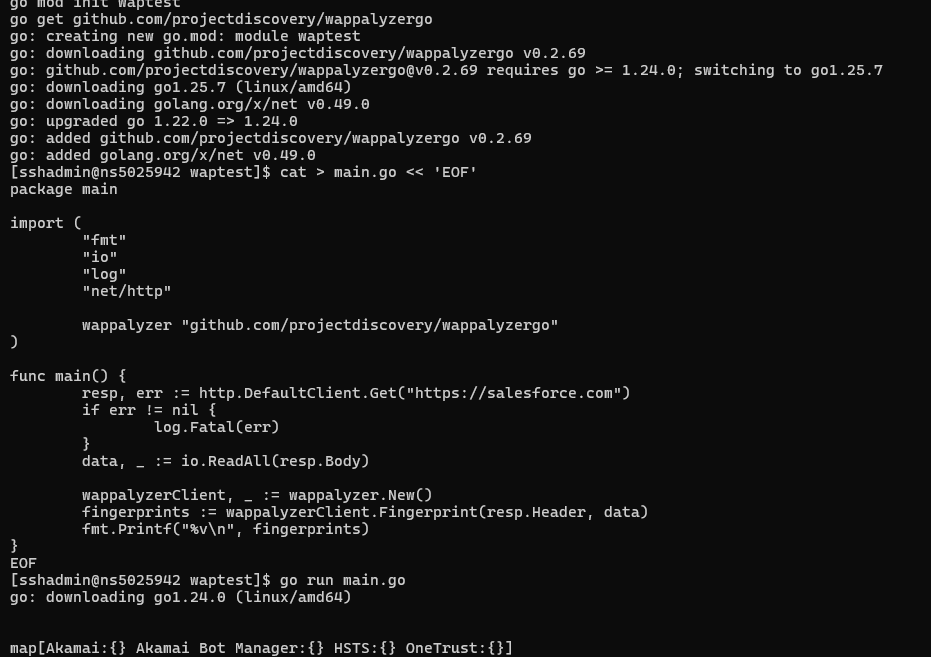
After this, I didn’t even bother to try it for other urls. Your experience may vary, of course, but since I didn’t have much time, this didn’t leave a good first impression fo rme.
Both WappalyzerGo and Wappalyzer-Next appear to be well-maintained Github projects though, so if you’re willing to dig into the code, you could probably find what went wrong, or raise an issue with the project maintainers.
Frequently Asked Questions
1. Is Wappalyzer still free?
Wappalyzer’s free tier has become increasingly limited. The browser extension still offers basic technology detection, but advanced features like bulk lookups, lead lists, API access, and historical data now require paid plans starting at $99/month.
2. What’s the biggest difference between Wappalyzer vs Builtwith?
BuiltWith typically has deeper historical data and broader coverage, while Wappalyzer has better accuracy, and a better UX/browser extension.
3. Are there any free alternatives to Wappalyzer?
SimilarTech, and WhatRuns are free alternatives, but they will not help you with building lead lists.
4. What tools do you *not* recommend as a replacement for Wappalyzer?
I would not recommend general purpose sales tools like Apollo.io or ZoomInfo. First, they’re too expensive and unless you need an all-in-one sales platform, you probably are just wasting money and using just one of their features.
Second, they don’t specialize in tech stack data. It’s just an “add-on” niche feature for them. Which means they don’t spend and invest time in making sure it’s accurate. That’s not an insult on them, it’s just a fact – they simply can’t devote 100% effort in making sure every single feature is as robust as possible.
Which Alternative Should You Choose?
The best choice depends on your specific needs:
Choose Bloomberry if you’re doing lead generation targeting users of B2B software that doesn’t leave a visible footprint on websites – CRMs, ERPs, AI tools, DevOps platforms, and the like. It’s the only Wappalyzer alternative here that reliably detects these backend technologies with real-time adoption and churn signals.
Choose BuiltWith if you need the largest possible list of websites using a frontend technology and can tolerate some stale data. It’s ideal for high-volume outbound campaigns where coverage matters more than precision.
Choose WhatRuns if you’re on a tight budget and just need quick, occasional lookups. It’s 100% free and accurate enough for casual research – just don’t expect exhaustive coverage.
Choose WPOptic if you need to know what WordPress plugins a site uses, or need a list of sites that uses a specific WordPress plugin.
Choose StoreLeads if you’re doing prospecting on ecommerce stores like Shopify.
Choose JobsPipe if you want a way to find companies mentioning a technology on a job post.
Choose NerdyData if you have a very specific, technical search in mind like finding sites running a particular script version or displaying a “Powered by” badge. It’s overkill for general prospecting, but unmatched for niche use cases.
Choose TechPeeker if you’re looking for websites that use a specific framework or CMS.
Choose the DIY approach with ChatGPT/Claude if you want a fairly comprehensive and accurate list of technologies a site uses for free
And if you’re still using Wappalyzer? It’s a solid tool for what it does. But now you know there’s a whole world of alternatives depending on what you’re actually trying to accomplish.
📊 See which companies use these tools
Explore adoption data for sales intelligence and technographic tools: