
Last Updated: January 6, 2026
Wappalyzer is one of the best technology detection tools out there, and as a software engineer, I think their approach is pretty clever. They crowdsource data from everyone using their browser extension – so as people browse the web, Wappalyzer is constantly collecting real-time technology data.
But it’s not perfect. It misses backend technologies and and the accuracy is hit and miss sometimes.
So I took a weekend to test out some alternatives. For each of these tools, you’ll see all the screenshots of my usage, so you’ll know I did my homework 🙂
If you’re busy, you can click to jump to a specific tool below that fits what you’re looking for:
- Bloomberry – best for enterprise tech detection + lead generation (Free To Try)
- Builtwith – best for frontend tech detection (Free To Try)
- WhatRuns – 100% free option (Free To Try)
- CRFT Lookup – another 100% free option (Free To Try)
- TheirStack – ideal for job posting technographics (Free To Try)
- Sumble – also good for job posting technographics (Free To Try)
- NerdyData – best for very specific searches (Free To Try)
- TechPeeker – best for finding websites that use a specific framework/CMS (Free To Try)
1. Bloomberry – Best for Enterprise Tech Detection and Lead Generation
Bloomberry is the best overall Wappalyzer alternative, especially for sales and lead generation, because it detects technologies that Wappalyzer simply misses.
Unlike Wappalyzer, which focuses primarily on frontend technologies visible on awebsite, Bloomberry provides data on both web and non-web products. Making it extremely valuable for sales teams doing lead generation for any SaaS/cloud product.
With Bloomberry, you can find customers of products that typically leave no visible footprint on company websites. These include tools like CRMs like Salesforce, ERPs like Acumatica, AI tools like ChatGPT and project management tools like Atlassian.
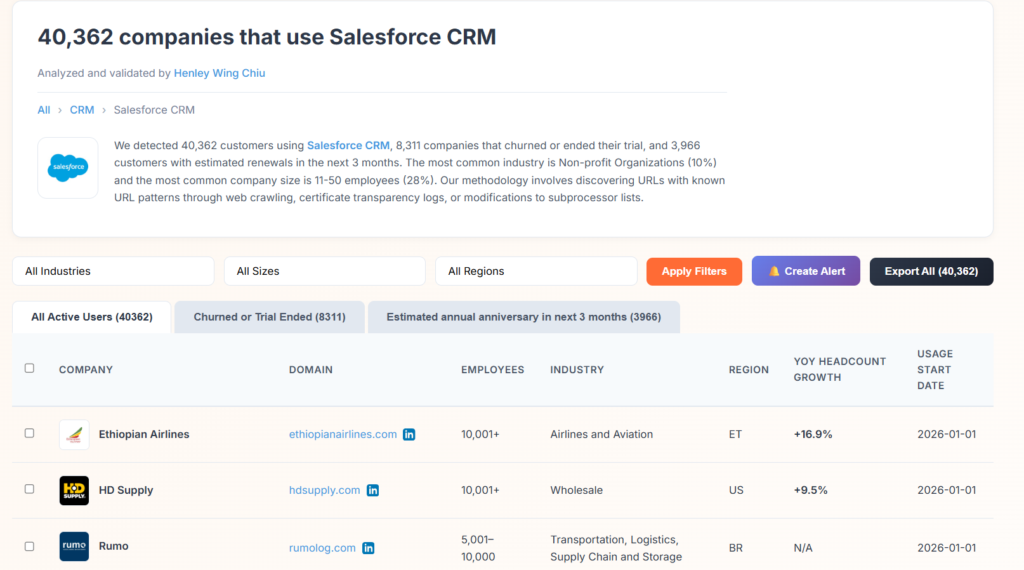
For instance, when I searched for companies that used Salesforce CRM, Bloomberry detected 40,000+ companies that were currently using Salesforce. Companies where their sales teams are actually using Salesforce as a CRM.
Wappalyzer, on the other hand is only able to detect companies that shows any visible footprint of using Salesforce on their website. This could be anything from using a Salesforce chat or customer service widget (Salesforce Service Cloud), or an analytics tracking script (ie Pardot).
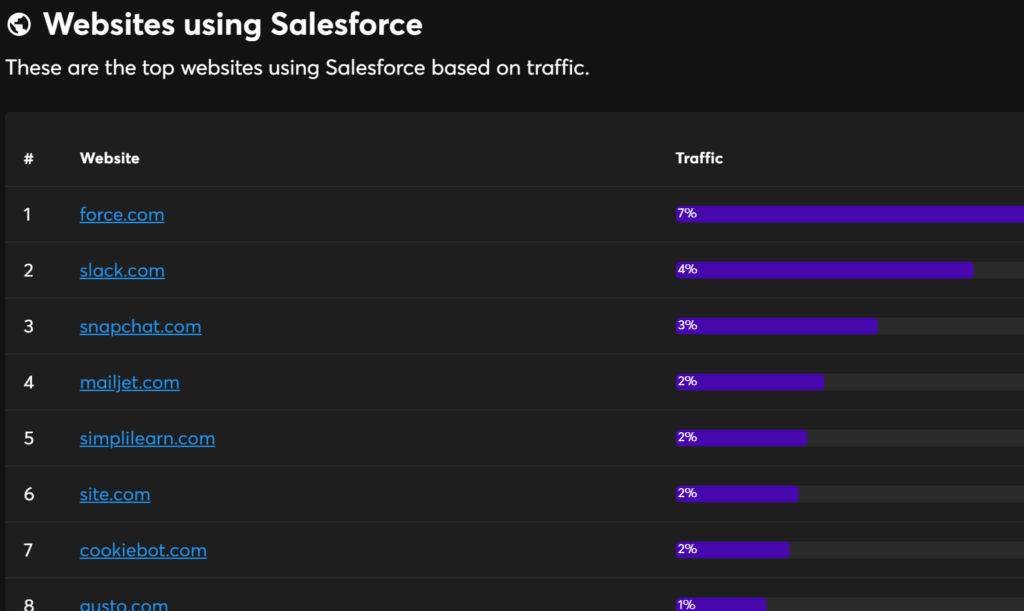
The problem with that? You’re not actually finding Salesforce CRM users – you’re finding companies that happen to use some Salesforce-adjacent tool on their website. That’s a very different audience. If you’re selling a Salesforce integration or a competing CRM, the Wappalyzer list won’t get you where you need to go.
For many products, Bloomberry also tracks in real-time when a company first starts using that product, and when they churned from it. In the Salesforce example, you not get the list of companies using Salesforce, but you can get an alert that will notify you via email or Slack when a new company was detected using it, or when a new company was detected dropping it. With Wappalyzer, you just get a static lead list.
For sales teams, that’s a big miss. Without adoption and churn signals, you’re working off a static list with no sense of timing. If you’re selling Salesforce consulting or implementation services, don’t you want to know when a company just started using Salesforce? That’s the perfect moment to reach out – they’re new to the platform, probably overwhelmed, and actively looking for help.
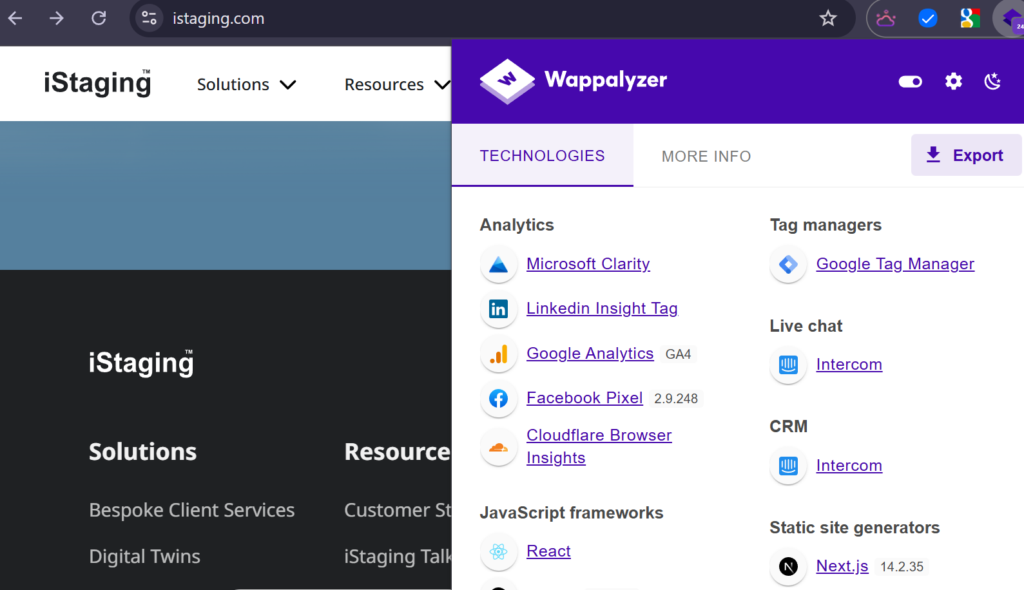
Lastly, while Wappalyzer is a bit more accurate than BuiltWith, it still is inaccurate in the way it detects whether a technology was dropped by a website. As an example, Wappalyzer mistakenly showed Intercom as a technology present for the website istaging.com, as shown below.

However, if you fire up a Javascript console and go to the Network tab, you’ll see that the Intercom app was suspended (it returned a 403: Forbidden response), and that the website actually stopped using Intercom. Wappalyzer detected the presence of the Intercom javascript and mistakenly assumed they were still using Intercom – something a lot of these tools get wrong (hence why they sometimes so inflated counts of websites using a particular technology).

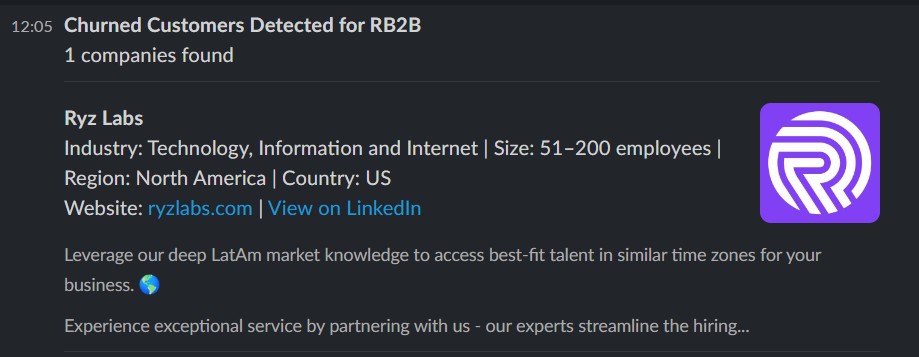
Bloomberry, on the other hand was smart enough to flag this and reported that they stopped using Intercom on December 24, 2024.
Limitations
Bloomberry’s coverage is focused rather than exhaustive. Because it prioritizes real-time accuracy and is geared toward sales and GTM teams, it doesn’t track every website in existence – small blogs and one-person operations typically aren’t in the database. Instead, it focuses on companies that are likely buyers of software – ie. companies with at least 5 employees.
Wappalyzer, with its crowdsourced model pulling data from thousands of browser extension users, will naturally have broader coverage of popular web technologies and smaller sites. If you need to identify tech stacks on niche or low-traffic websites, Wappalyzer might fill those gaps better.
Pricing
Paid plans for Bloomberry start at $199/month, with both UI and API access.
2. BuiltWith – Best For Frontend Tech Detection
No Wappalyzer alternatives article would be complete without mentioning the OG in this space: BuiltWith – the most widely recommended tool for identifying what technologies a website uses.
Unlike Wappalyzer, BuiltWith takes a different approach in gathering its data. While Wappalyzer relies heavily on crowdsourced data from its 2.5M+ browser extension users (supplemented by their own crawlers), BuiltWith primarily uses periodic crawls to build comprehensive lists of technology users.
Wappalyzer’s approach means their data is often more up-to-date for client-side technologies on actively visited sites, while BuiltWith’s crawl-based method provides broader coverage of the web – including sites that Wappalyzer’s users may never visit.
Here’s a good example that illustrates this difference. Let’s say you’re interested in knowing which companies are using Stripe (the payment processor). Wappalyzer currently shows 300,000+ websites using Stripe, while BuiltWith shows more than 1,3000,000 websites using Stripe.

That’s over 4x more coverage. The difference? BuiltWith’s crawlers systematically scan millions of sites regardless of whether anyone with an extension has ever visited them. For a sales team building a prospect list of Stripe users, that’s potentially a million additional leads they’d miss by relying on Wappalyzer alone.
The tradeoff? BuiltWith’s data can lag behind reality. Some of those 1.3 million sites may have switched away from Stripe weeks ago, but BuiltWith’s crawlers haven’t caught up yet. Here’s an example of a site that removed Yotpo, a loyalty management tool on December 1, 2025 (It’s January 2 today), yet BuiltWith still claims that they’re using they’re using it.

Wappalyzer’s crowdsourced model tends to reflect changes faster—at least for popular sites that extension users visit regularly.
So when should you choose BuiltWith over Wappalyzer? If you’re running outbound campaigns and need the largest possible list of companies using a specific technology, care more about coverage than perfect accuracy, and have the resources to handle some outdated leads in your pipeline, then BuiltWith probably makes more sense.
Limitations
BuiltWith has 2 major limitations. As mentioned, their crawl-based approach means some changes take longer to appear (whether it’s new installs or churns). Second, like Wappalyzer, they only detect technologies visible on a website: ie. Shopify apps, martech, adtech, and ecommerce applications. If you’re looking to build lead lists of companies using AI tools like ChatGPT, security tools, devops tools, ERPs or anything not visible on the frontend, BuiltWith won’t help you.
Pricing
Plans start at $199/month.
3. WhatRuns – best for those on a budget
If both Bloomberry and BuiltWith are too expensive for you, WhatRuns is a 100% free Wappalyzer alternative, with a completely free browser extension for instant technology identification.
Like Wappalyzer, you simply visit a website, click the extension icon, and it displays the detected technologies. When I visited unifygtm.com, for example, it shows me the screenshot below.

All the technologies are grouped rather nicely by functionality, ie. Hosting, Javascript Libraries, Font packages, CDNs, Analytics, Tag Managers, etc. And when I checked all the scripts that were actually running on unifygtm.com, they all seemed very accurate.
WhatRuns did miss a fair share of technologies that Bloomberry, BuiltWith and Wappalyzer found though. For instance, it couldn’t detect Navattic, Amplitude, Default, Vector.co, or RB2B (Amplitude probably was the biggest miss, as it’s one of the biggest analytics tools I would’ve expected it to find).
Unlike Wappalyzer, which now limits free users to basic detection and reserves advanced features for paid plans, WhatRuns remains completely free with no feature gating. That’s a meaningful advantage if you’re doing occasional research rather than daily prospecting.
For casual users, sales reps doing quick competitive research, or anyone who doesn’t need exhaustive detection, WhatRuns is a solid choice. Power users doing deep tech stack analysis will likely want to pair it with a more comprehensive paid tool to fill in the ga
Limitations
Coverage is noticeably thinner than paid alternatives. In testing, WhatRuns missed some widely used tools like Amplitude. You’re getting what you pay for. For more complete coverage or any serious prospecting and research, one of the other tools on this list is likely a better fit.
Pricing
100% free.
4. CRFT Lookup – another free alternative for tech stack lookups
If you’re looking for another Wappalyzer alternative that’s 100% free, CRFT Lookup is another option. Unlike Wappalyzer and WhatRuns, they don’t have a browser extension. But you can lookup the tech stack of any website through their free tool on their website.
When I looked up the tech stack of Anthropic for instance, CRFT gave me a solid list of all the products and Javascript frameworks that Anthropic uses. Their coverage was pretty solid, as it gave me 16 technologies, compared to 17 from Wappalyzer. As you can see below, it did a good job of detecting Javascript frameworks in particular, as it showed that Anthropic was using Webpack, LottieFiles, and JQuery.

One feature that isn’t core to technographics, but could be useful as their “Sitemap” feature where they showed a high-level view on how the page structure of a website is a structured. For example, when I searched for anthropic.com, it showed me this:

You can see all the main subfolders of a site, as well as the inner pages in those subfolders. In the example above, I’m able to see that Anthropic has an event subfolder, and inside that, they have different landing pages for the different events they’re holding.
I don’t know how CRFT Lookup does this, but I presume they detect the sitemaps of a site and crawl it. Again, it’s not core to their tool, but it could be a valuable way to analyze a competitor to see what they’re doing, what keywords they’re targeting, and how they’re trying to position themselves.
Limitations
CRFT Lookup, like Wappalyzer also has no coverage of backend/backoffice products that aren’t detectable through the frontend. They also do not have any functionality related to lead generation. For instance, there’s no way to get a list of websites that use a particular Javascript framework.
Pricing
CRFT Lookup is 100% free, as it’s not their main product. They use it as a free tool to attract clients to their consulting services.
5. TheirStack – best for job posting technographics
TheirStack, like Bloomberry addresses one of the biggest weaknesses in Wappalyzer: little to no coverage of technologies that do not little a footprint on a website.
Many B2B tools operate entirely behind the scenes. CRMs like Salesforce, sales engagement platforms like Outreach and Salesloft, AI tools like Claude, none of these inject scripts or pixels into the frontend. They’re invisible to browser-based detection tools like Wappalyzer or WhatRuns.
This creates a massive blind spot for sales teams. Knowing a prospect uses jQuery or Google Fonts is rarely useful. Knowing they use Salesforce, Outreach, or Claude? That’s actionable intel.
TheirStack solves this by pulling from alternative data sources like job postings crawled from Linkedin. So if a company is hiring for a “Tableau Admin” or lists “experience with Tableau” in their job descriptions, TheirStack picks that up. It’s a completely different approach to tech stack detection – and for B2B prospecting, it can sometimes be more valuable.
When I signed up for a TheirStack account (which is free to try by the way) and searched for companies that posted a job mentioning “Tableau”, it showed me 3,585 companies that mentioned “Tableau” in a job posting, enriched with the job title, job url, company, revenue, and more.

TheirStack’s pricing is rather unorthodox at first glance. You’ll need to pay for credits to see each company in each result (pricing starts at $0.109 per credit, with 1 credit needed to reveal 1 company). If you look at the screenshot below, you’ll see that TheirStack doesn’t show the name of the companies immediately. Instead, you’ll have to click a “Reveal” button, to spend 1 credit to reveal that 1 company.
Limitations
The biggest limitation of TheirStack’s approach is that job postings aren’t always very accurate in telling you what technologies a company uses. After all, we all know that job postings often have laundry lists of technologies a candidate should know, of which a few they actually use.
For instance, one of the companies + jobs that TheirStack showed for Tableau was this job posting below

The company probably just listed all the major BI tools in the job posting to “cover their bases”. Or they might be using Tableau. The point is you don’t know for sure.
Even when TheirStack gets the technology right, there’s another problem: timing. When a company mentions a tool in a job posting, it usually means they’ve already been using it for a while – often a year or longer.
For sales teams, this is a critical gap. Timing often matters more than accuracy in prospecting. Catching a company while they’re actively evaluating options is far more valuable than finding out they adopted something 18 months ago.
However, If you’re casting a wide net and can afford some false positives in your prospecting list (ie your email deliverability health is already good), this trade-off is probably fine. But if precision matters – say, for account-based campaigns where you’re crafting personalized messaging around a specific tool, or if you can’t afford to send emails to irrelevant companies, this might not be OK.
Pricing
At $0.109 per credit, revealing 100 companies costs about $11. That’s significantly cheaper than most intent data or lead database tools, which often charge hundreds per month for similar access.
TheirStack also offers free credits when you sign up, so you can test the data quality before spending anything.
6. Sumble – also good for job posting technographics
Sumble (a name I can never seem to remember) takes a similar approach to TheirStack: they crawl job postings – mostly from LinkedIn – and identify companies that mention specific technologies. They recently raised over $38M to build a “knowledge graph” for sales teams.
When I signed up, the UI felt similar to TheirStack, if a bit clunkier. But after a few minutes, I got the hang of it.
I searched for companies that mentioned Perplexity, and Sumber… err, Sumble (see what I mean?) returned a table of results of companies that all mentioned “Perplexity” in at least 1 job posting.

Sumble also gives you a few enriched columns that TheirStack doesn’t. For instance, you can see the number of teams using a product within each company, the total job postings that mention it, and the date of the most recent posting.
I’m not entirely sure how they determine the number of teams – my guess is they’re either extracting team names from job postings or crawling LinkedIn profiles of employees at that company.
Coverage seems solid across a wide range of technologies, and you can filter results by criteria like job title keywords or terms in the job description.
Beyond job postings, Sumble also has a “People” tab that presumably shows individuals who use a given technology. That feature was disabled during my trial (it’s paywalled), but I’d guess it works by crawling LinkedIn profiles for skill mentions.

Limitations
All the limitations of TheirStack apply to Sumble. The biggest assumption both tools make is that if a company mentions a technology in a job posting, they must use it. But a mention is just a mention – it doesn’t always imply usage.
For example, when I searched Sumble for companies that mentioned Perplexity, it returned Avalara. But when I dug into the actual job posting, Avalara was looking for someone to optimize their presence in LLMs like Perplexity – not someone to use Perplexity internally. They weren’t a Perplexity customer at all.

Like TheirStack, there’s also a timing problem. Job postings often mention technologies years after a company adopted them, which makes them unreliable for identifying recent adopters. If you’re a Salesforce consulting company trying to catch new Salesforce implementations, targeting companies that mention “Salesforce” in job postings is mostly a waste of time – those companies likely implemented it ages ago.
Where Sumble does shine is account research. If you’re already talking to a prospect and want to understand their tech stack, Sumble can surface what they’ve mentioned in job postings. From there, you can dig into the context to determine whether they actually use a product or just referenced it in passing.
Pricing
Sumble offers three tiers: Free, Pro, and Enterprise.
The Free plan gives you basic access to search and explore their database. The Pro plan costs $99/month and adds project filters, people matching features, trends tracking, up to 10 pages of search results, full text search, AI-drafted outreach emails, and 20 signals per day.
Enterprise pricing isn’t published – you’ll need to book a call with their team.
7. NerdyData – best for power users searching for something very obscure
While most of the other tools on this list will satisfy 99% of use cases, there’s the 1% where it’s almost impossible to find websites that match your criteria. That’s where NerdyData becomes extremely useful.
The concept is simple but powerful. You search for an exact string (or regular expression), and NerdyData finds every site that has that exact string anywhere on the page. It’s like doing Ctrl+F across millions of websites.
As an example, let’s say I want to find all sites using jQuery, a JavaScript framework. That’s an easy use case for Wappalyzer or BuiltWith. But what if you wanted to find all sites using a specific version of jQuery? Let’s say you’re a security consulting company, and you’ve discovered that a particular version has a known vulnerability. You want to contact every website running that version.
Well, there’s no way to find such sites with traditional tech lookup tools. With NerdyData, it’s just a simple search. For example, when I searched for “jquery-1.8.3.min.js”, NerdyData showed me 398,363 websites that had that string anywhere in the HTML source of their website – most of which presumably were running that specific version of JQuery.

Here are a few other use cases where NerdyData shines over the alternatives:
Finding companies on free tiers of SaaS tools. Many tools display “Powered by [Tool Name]” in their widget footers, especially on free plans. Typeform, Calendly, Discourse, Teachable, Zendesk – they all do this. NerdyData lets you search for that exact string and find every website displaying it. These are likely free-tier users who might be ready to upgrade to a paid competitor.
Wappalyzer and BuiltWith can detect the technology itself, but it can’t distinguish between paying enterprise customers and free users stuck with the branded widget.
Competitive displacement for specific product versions. Similar to the jQuery example, if you know a competitor’s older script version is being deprecated or has issues, you can search for that exact filename and build a hyper-targeted list. “Hey, we noticed you’re running v2.3 which is being sunset next quarter – here’s how we can help you migrate.”
For those that are used to a more traditional search, NerdyData also offers a more user friendly search. You can also choose to search by product instead, as shown in the screenshot below.

Limitations
While I love the powerful search nature of NerdyData, in my trial, I did notice a few inaccuracies in how they detect technologies for a website.
For example, when I searched for companies using Intercom, they seemed to do some sort of regular expression matching, looking for companies that have “intercomSetting” somewhere in their HTML source. This gave results like SSRN.com, which showed no signs of having Intercom installed anywhere.

In addition, if you look at the screenshot above, you’ll see that NerdyData takes quite awhile to crawl sites. Some of the sites weren’t crawled for almost 2 months. So if you’re looking for fresh, up-to-date data, then I probably wouldn’t use NerdyData.
Pricing
NerdyData offers two pricing models: one-time reports or monthly subscriptions.
If you just need a single list, you can purchase individual reports for $75 each on the free plan – no subscription required. This is great if you have one specific search in mind and don’t need ongoing access.
For heavier usage, their unlimited monthly plans start at $295/month, which lets you download as many reports as you want. They also offer a 20% discount if you pay annually.
There’s also a free tier that lets you run unlimited searches and see the total result count, but you’re capped at viewing the first 50 rows per report. This is useful for validating whether your search will return enough results before you commit any money.
8. TechPeeker – best for power users searching for something very obscure
TechPeeker is a newer player in the technology intelligence space, and it’s particularly well-suited for building lead lists based on frontend technologies like JavaScript frameworks and CMS platforms.
The UI is minimal and easy to navigate. When you run a search, you can layer on multiple filters: technology type, domain suffix, language, and site popularity. I tested it by looking for Ruby on Rails sites in German, and it returned 182 results ranked by Majestic score.

TechPeeker’s filtering interface lets you combine technology, language, and popularity filters.
What sets TechPeeker apart is its keyword filtering. You can search for sites that contain specific terms in their title or meta description, which makes it easy to zero in on a niche. I tried searching for Shopify stores with “skincare” in their metadata, and the results were spot-on — a clean list of ecommerce sites selling skincare products. If you’re prospecting within a specific vertical, this feature alone could save you hours of manual filtering.

Technology detection covers the usual suspects: WordPress, Shopify, Magento, Drupal on the CMS side, and React, Vue.js, Angular, Next.js, Nuxt.js, and Svelte for frameworks. It also picks up backend frameworks like Laravel and Ruby on Rails, though detection is limited to what’s visible on the frontend.
Each result includes a Majestic Rank, which reflects domain authority based on backlink profile. This is helpful for segmenting your outreach – you can prioritize high-authority sites if you’re going after enterprise accounts, or filter for lower-ranked sites if you want to target smaller businesses that aren’t drowning in sales emails.
TechPeeker also has a handful of free standalone tools: detectors for Shopify themes, WordPress themes, Shopify apps, and general CMS identification. These work without an account and are handy for quick lookups.
Limitations
TechPeeker is focused on web-facing technologies. It won’t help you find companies running Salesforce, HubSpot CRM, or other backend tools that don’t expose themselves in a site’s source code. If backend detection matters to you, Bloomberry might be a better choice.
Pricing
Starter runs $250/month and includes 4 technology lists. Business is $350/month for unlimited lists and priority support. Annual billing knocks off about 17%, and there’s also a one-time purchase option if you just need a single dataset.
For teams doing outreach to companies on specific web platforms – especially if you need to filter by vertical or niche – TechPeeker delivers good value without the complexity of larger enterprise tools.
Which Alternative Should You Choose?
The best choice depends on your specific needs:
Choose Bloomberry if you’re doing lead generation targeting users of B2B software that doesn’t leave a visible footprint on websites – CRMs, ERPs, AI tools, DevOps platforms, and the like. It’s the only Wappalyzer alternative here that reliably detects these backend technologies with real-time adoption and churn signals.
Choose BuiltWith if you need the largest possible list of websites using a frontend technology and can tolerate some stale data. It’s ideal for high-volume outbound campaigns where coverage matters more than precision.
Choose WhatRuns or CRFT Lookup if you’re on a tight budget and just need quick, occasional lookups. It’s 100% free and accurate enough for casual research – just don’t expect exhaustive coverage.
Choose TheirStack or Sumble if you want a way to find companies using technologies that don’t show up on websites, and you’re comfortable with the noise that comes from job posting data.
Choose NerdyData if you have a very specific, technical search in mind like finding sites running a particular script version or displaying a “Powered by” badge. It’s overkill for general prospecting, but unmatched for niche use cases.
Choose TechPeeker if you’re looking for websites that use a specific framework or CMS.
And if you’re still using Wappalyzer? It’s a solid tool for what it does. But now you know there’s a whole world of alternatives depending on what you’re actually trying to accomplish.