


Last Updated: September 10, 2026
If you want a list of companies that use a specific technology, the #1 tool most people recommend is BuiltWith. It shows up in blog posts, playbooks, and tool roundups everywhere.
However, BuiltWith has a few important limitations. Its data can miss newer or less visible products, it doesn’t detect many backend technologies, and pricing starts at $295/month, which adds up quickly if you use it heavily.
So I took an afternoon to test out a range of alternatives. For each of these tools, I signed up for an actual account and used it in practice, rather than just reading the marketing site. (You’d be surprised how many “comparison” articles don’t do this 🤣)
If you’re busy, you can click to jump to a specific tool below that fits what you’re looking for:
- Bloomberry – best for enterprise tech detection
- Wappalyzer – inexpensive browser extension for real-time tech stack lookups
- SimilarTech – tech lookup with strong filtering capabilities
- TechPeeker – best for lead generation based on CMS and frameworks
- WhatRuns – completely free (but limited) alternative
- Apps Run The World – a solid option for market researchers
- NerdyData – good if you’re very technical and know what you’re searching for
- CRFT Lookup – free alternative if you just need to look up tech stack for a website
- FUL.io – free alternative for simple website tech stack lookups
- urlscan.io – useful for security and OSINT-style research
[NOTE: If you’re building a BuiltWith alternative and want me to include it, shoot me an email with login details. I’m happy to test it and see if it makes sense to add it to this list.]
#1: Bloomberry – best BuiltWith alternative for enterprise tech detection
Bloomberry is a strong BuiltWith alternative built especially for sales teams that want to build targeted lead lists based on what technologies companies use.
It solves the same core problem as BuiltWith, but goes further in a few important ways, especially for lead generation and prospecting.
Like BuiltWith, Bloomberry can detect many web technologies by analyzing what’s running on a company’s website. Where it really stands out, though, is that it also tracks non-web technologies – tools that don’t leave an obvious footprint on a public site. That includes products like CRMs, ERPs, security tools, backend technologies, devops tools, finance products and much more, across 1,700+ products in 190 categories.
It manages this by reading infrastructure signals rather than just scanning for scripts: new subdomains, DNS records, certificate transparency logs, and signals specific to how each individual product gets deployed.
Because of this broader coverage, Bloomberry can often be used instead of BuiltWith when you’re building technographic company lists for lead generation and prospecting.
For example, when I searched for “Okta”, Bloomberry returned over 10,000 companies using Okta, enriched with their firmographic details (# of employees, industry, region, headcount growth), as you can see in the screenshot below. You typically won’t get this kind of coverage from BuiltWith alone, since it focuses mainly on what’s visible on a company’s website.
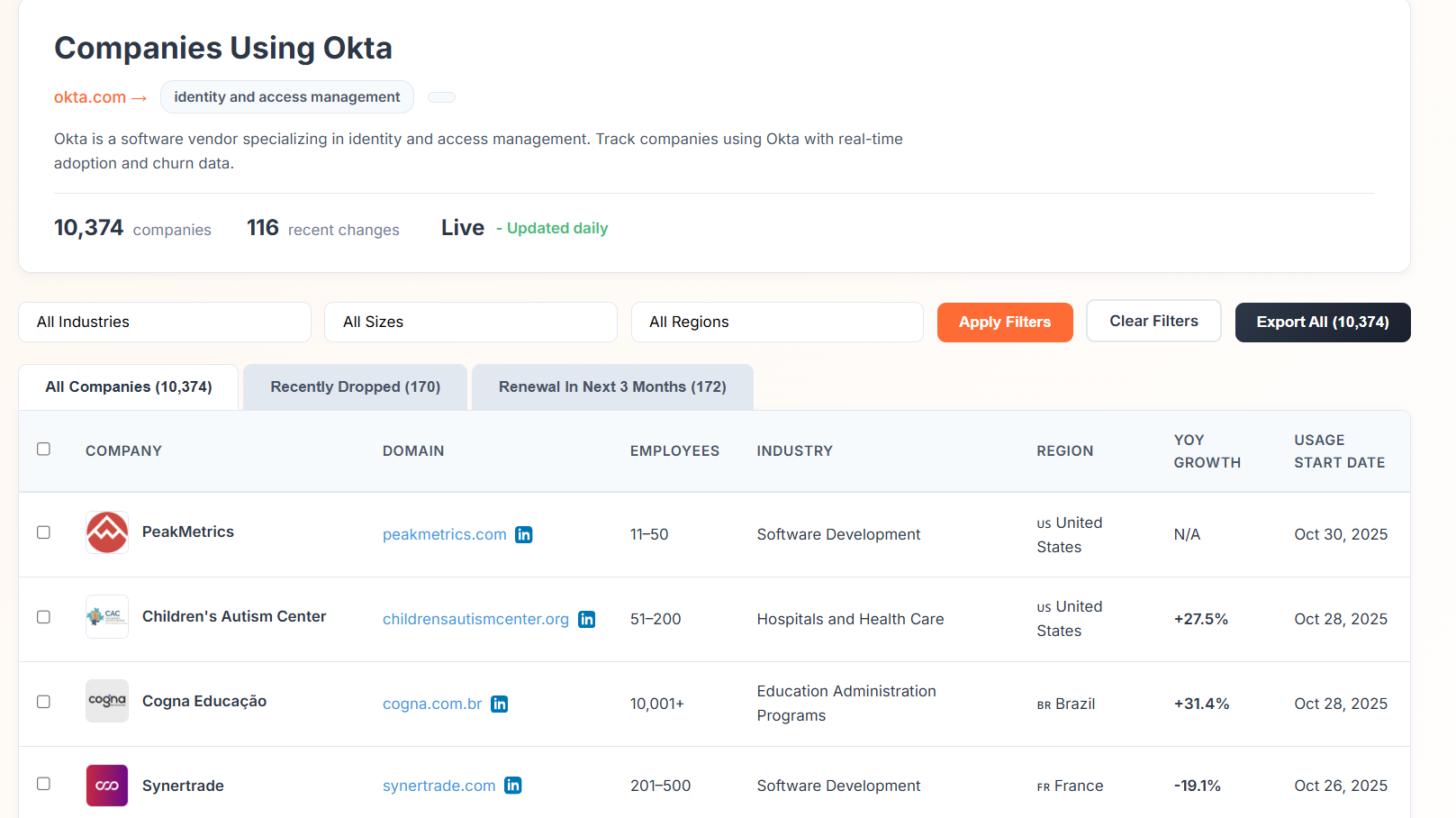
Bloomberry also provides real-time data on adoption and churn. For each account, you can see when a company started using a product like Okta and which companies recently stopped using it.
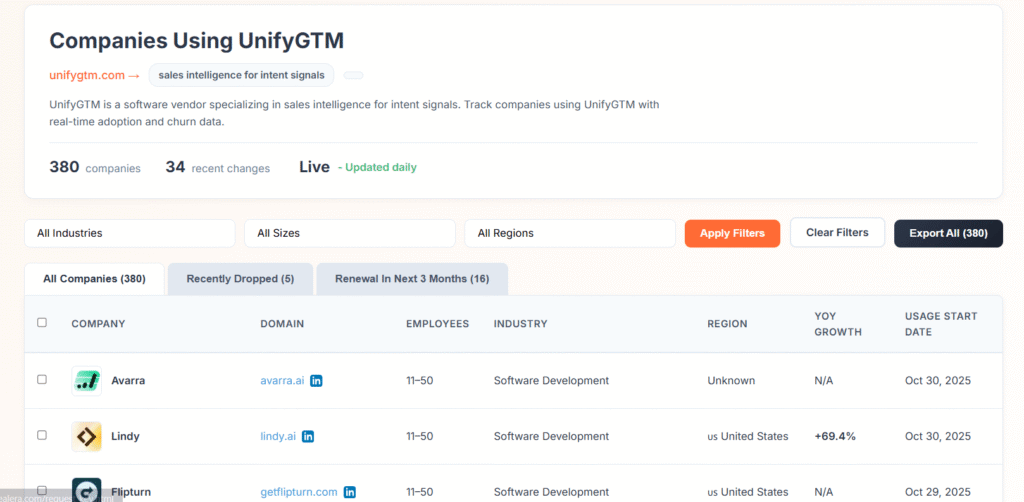
On the frontend side, Bloomberry, like BuiltWith, has good coverage of many web technologies, including some newer ones BuiltWith doesn’t yet cover. For instance, Bloomberry has data on 380+ companies that embedded Unify (a sales platform) on their websites, while BuiltWith had no data for that technology when I checked in October 2025.
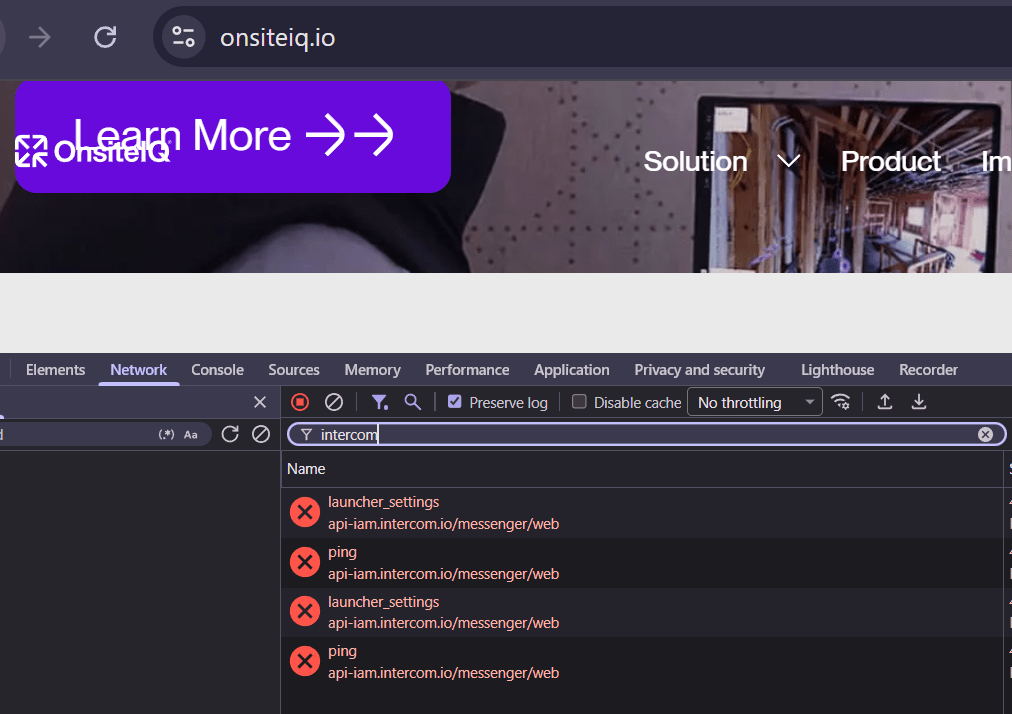
For churn detection, Bloomberry is designed to pick up when a company has effectively stopped using a technology. For instance, it detected that onsiteiq.io recently churned from Intercom because their Intercom widget stopped working, even though the script was still present on the site.
When you visit onsiteiq.io, you’ll see that the Intercom script is still embedded, but the widget returns an error. Bloomberry uses this behavior to flag OnSiteIQ as having churned from Intercom.
This makes Bloomberry especially useful for sales teams who want to reach out at the right moment, when a prospect just started evaluating a new tool or recently dropped a competitor.
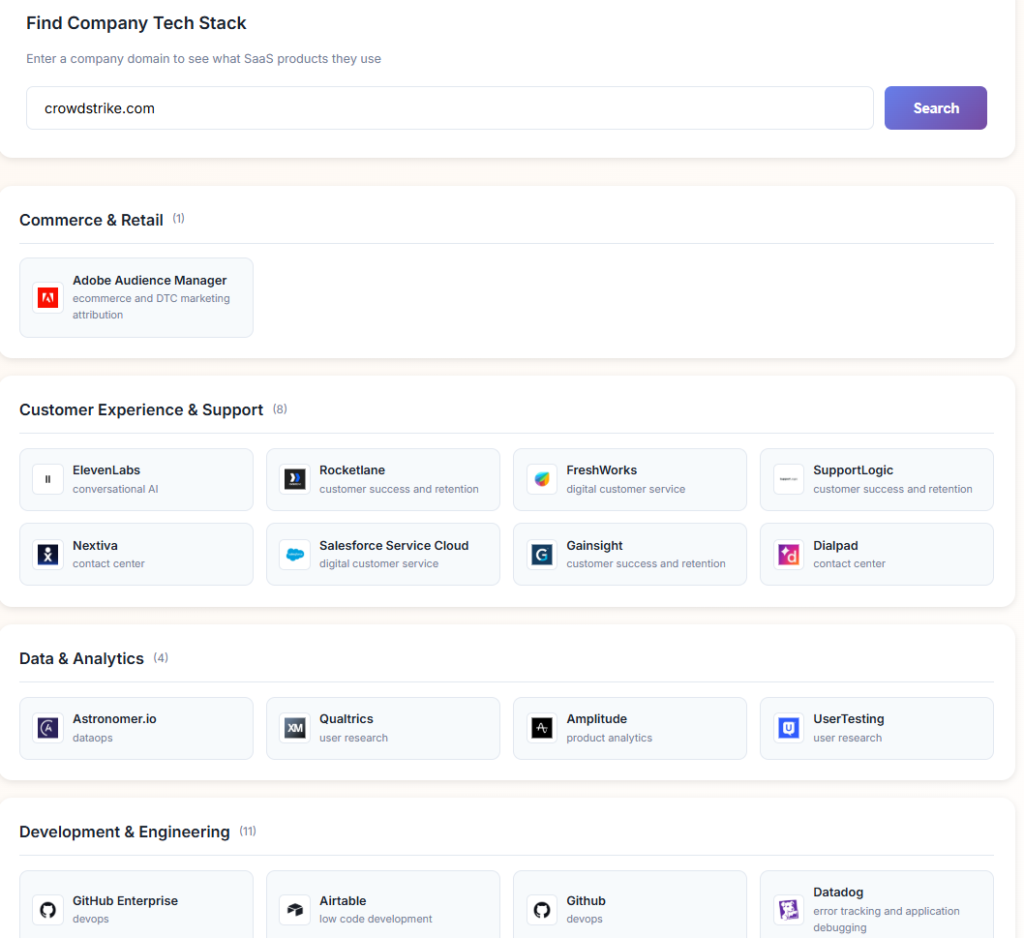
Like Builtwith, Bloomberry also lets you do tech stack lookups.
You can find the tech stack of a company by entering their domain. But instead of showing you just the front-end technologies they use on their website, Bloomberry also shows you all types of SaaS products they use. In the example below, you can see Bloomberry detected that Crowdstrike uses Salesforce Service Cloud, Github Enterprise, Airtable, and ElevenLabs – all products that don’t leave a footprint on a company’s website.
Limitations
Bloomberry covers many frontend frameworks, but BuiltWith still has deeper coverage for very large, static lists of popular frontend technologies. For example, BuiltWith can provide a list of over 53,000,000 sites using ReactJS.
Similarly, if you need massive, general-purpose lists for widely adopted platforms like Shopify or WordPress, BuiltWith is still better suited for that specific job.
Pricing
Bloomberry offers a free account with sample data, and paid plans start at $199/month. It’s available via both a UI and an API, and you can sign up for an account here.
#2: Wappalyzer – very inexpensive/free tool for simple tech lookups
While BuiltWith relies on periodic recrawls, Wappalyzer focuses on real-time detection, making it a very viable alternative. They offer both Chrome and Firefox extensions that identify a site’s tech stack as you browse.
When I installed the Wappalyzer Chrome extension and visited lindy.ai, it displayed the technologies installed on the site in a structured, easy-to-scan panel.
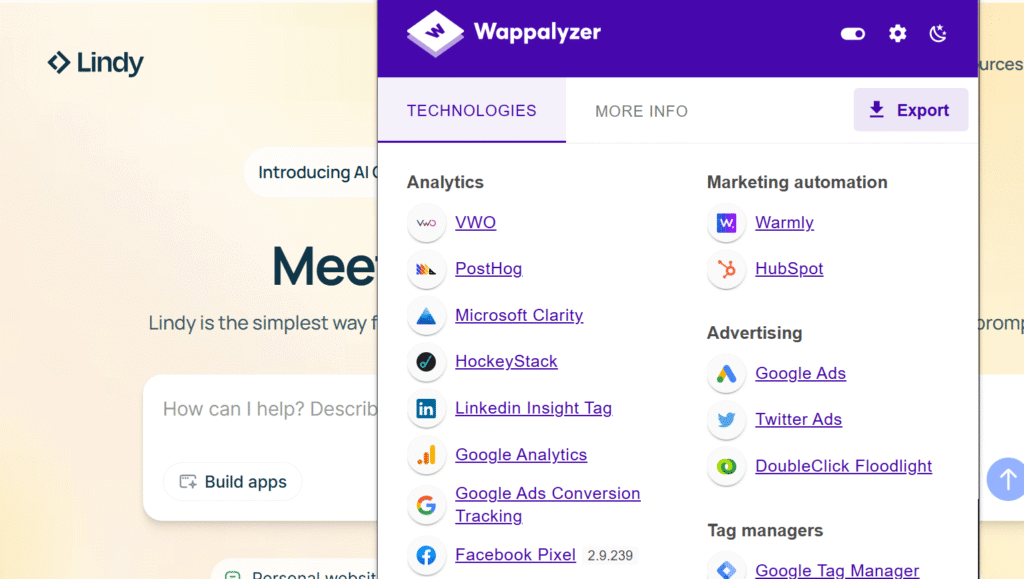
The extension showed that lindy.ai uses VWO, Posthog, Warmly, HubSpot, and several other tools — all of which matched what I saw when I manually checked the site.
One limitation I noticed is that Wappalyzer doesn’t always detect “newer” technologies or products. For example, UnifyGTM was installed on a site I tested but didn’t appear in Wappalyzer’s results.
That said, among browser extensions focused on frontend technology detection, Wappalyzer does a very good job of covering the most commonly used tools.
Higher accuracy than BuiltWith for many frontend use cases
Wappalyzer also lets you find companies using a specific frontend technology. Because their data is crowdsourced from users running the browser extension, it’s often more up to date for client-side technologies than data gathered solely from scheduled crawls.
BuiltWith, on the other hand, depends on its crawl schedule. That works well for a lot of use cases, but some changes take longer to show up compared to real-time extension-based detection.
Limitations
For backend technology detection, Wappalyzer is less reliable. Even when it reports backend-related products like Okta, it’s often inferring those from frontend scripts, which may appear later in a customer’s lifecycle or not at all.
If you’re looking for an alternative to Wappalyzer, I recently wrote a guide here.
Pricing

Wappalyzer has a generous free plan that includes 50 website lookups per month. If you just need occasional tech lookups, that can be enough. For higher volumes and more advanced usage, their Pro plan starts at $250/month.
#3: SimilarTech – tech lookup with strong filtering capabilities
SimilarTech is another BuiltWith alternative focused on web technology detection. If you’re a digital marketer, you may already know their parent brand, SimilarWeb, which focuses on website traffic data.
SimilarTech, like Wappalyzer, offers a free browser extension. When you visit a site such as lindy.ai, it lists technologies used across categories such as marketing, analytics, conversion, and CDNs.
In my testing, I found the extension less intuitive to navigate. For example, there wasn’t an obvious way to scroll to all categories, so some sections appeared cut off, and you need to click into each category to reveal the technologies inside it, as shown below.
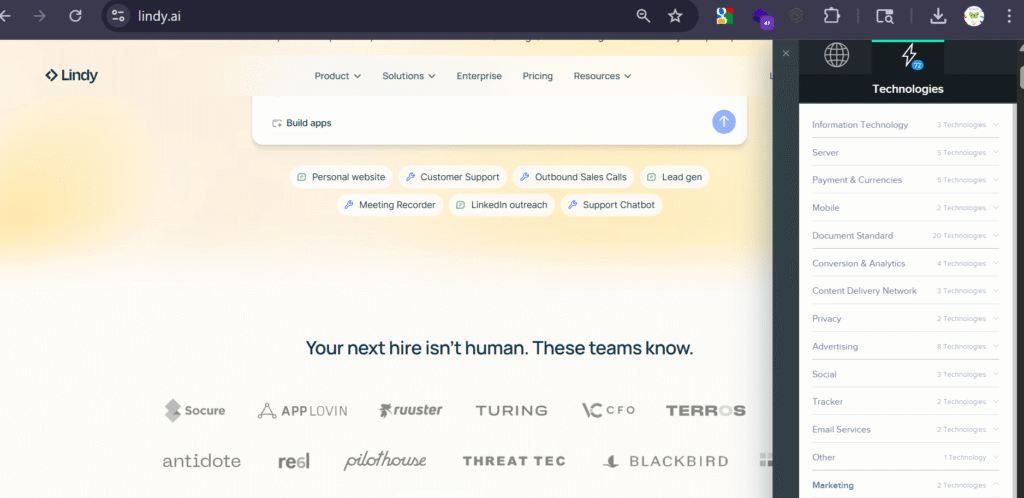
Where SimilarTech stands out more is in its web UI. The web interface offers advanced filtering: you can build prospect lists based on technologies used, company size, industry, location, and technology adoption patterns.
You could build something similar with BuiltWith by exporting results and then enriching them with firmographic data in a tool like Clay, but SimilarTech combines those steps directly in its UI.
Limitations
Like Wappalyzer, SimilarTech doesn’t have deep coverage of newer technologies such as UnifyGTM, and it doesn’t capture backend or non-web technologies that aren’t exposed via the website.
Pricing
SimilarTech is positioned as part of an enterprise suite, so there isn’t a lightweight plan aimed at very small teams. Based on publicly available information:
If you need advanced features, you’re likely looking at plans starting at around $499/month.
- Starter: $249/month – basic technology detection and limited prospect exports
- Professional: $499/month – advanced filtering, unlimited exports, and priority support
- Enterprise: custom pricing – API access, custom integrations, and dedicated support
#4: TechPeeker – best for lead generation based on CMS and frameworks
TechPeeker is a technology lookup and lead generation tool that helps you find websites based on the technologies they use. It covers more than 17 million websites and 800+ technologies, which makes it a genuinely large database to work from when you’re building targeted prospect lists.
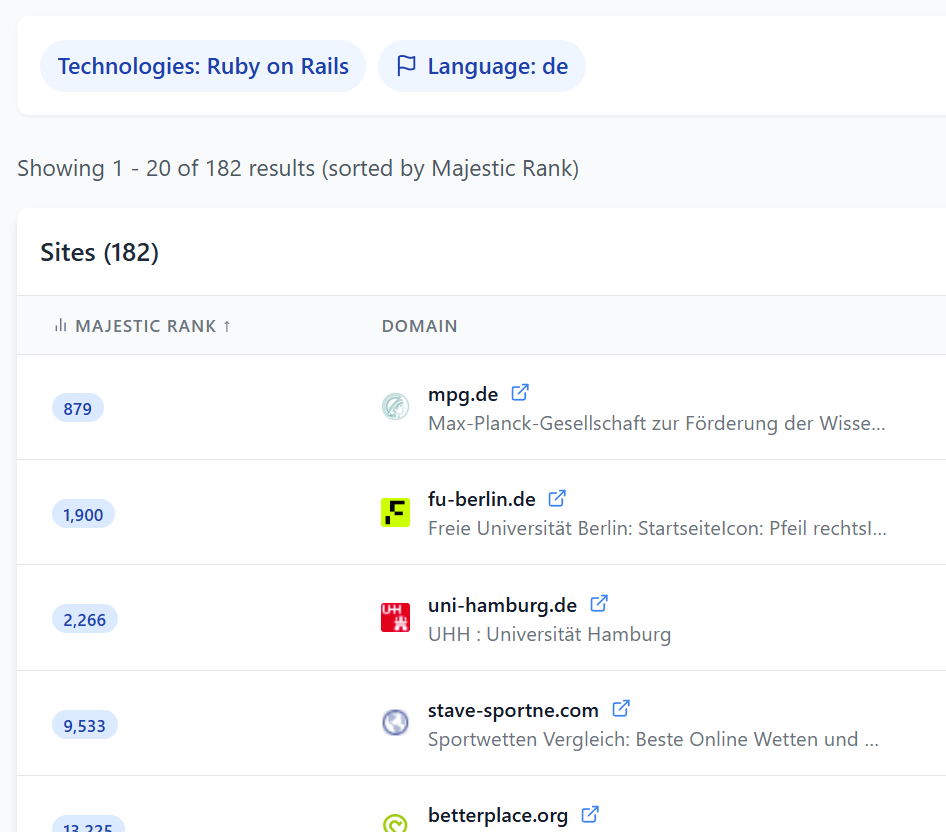
It has a clean, straightforward interface. You can search for websites using a specific technology and filter by CMS, framework, domain suffix, language, and website popularity (ranked by Majestic). In my testing, I searched for sites using Ruby on Rails filtered to German-language sites and got 182 results sorted by domain authority.
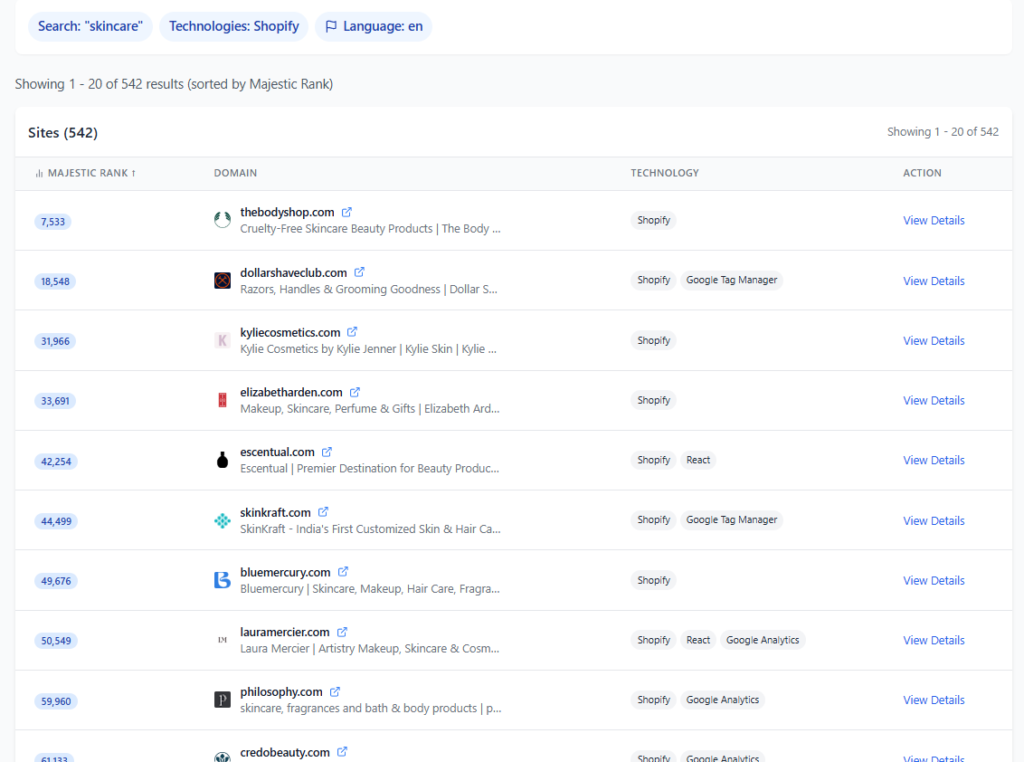
You can also filter sites by keywords in their title or meta description, which is the feature I’d actually use it for. When I searched for stores using Shopify and filtered to the keyword “skincare”, TechPeeker returned an accurate list of skincare stores rather than every Shopify store in the index. That’s the difference between a usable list and a scrape if you’re doing niche outreach.
Coverage includes the common CMS and ecommerce platforms like WordPress, Shopify, Drupal, and Magento, plus frontend frameworks like React, Vue.js, Angular, Next.js, and Svelte. It also detects backend frameworks such as Laravel and Ruby on Rails.
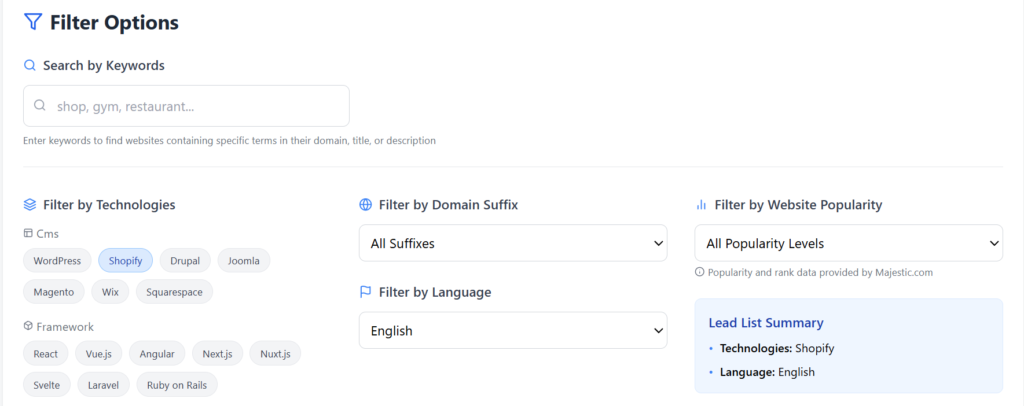
One thing I appreciated is that results include Majestic Rank data, which gives you a quick sense of a site’s authority based on backlinks. That’s useful if you’re prioritizing outreach to larger companies, or deliberately targeting the smaller ones that probably don’t get a ton of cold emails.
TechPeeker also offers several free tools: a Shopify theme detector, WordPress theme detector, CMS detector, and Shopify app detector. These are handy for quick one-off lookups without signing up.
Limitations and Pricing
TechPeeker’s pricing starts at $99/month, with a Business plan at $149/month that adds API access and bulk enrichment for agencies and sales teams working with larger datasets. That’s well under what BuiltWith or Wappalyzer charge for comparable frontend data, and it’s the main reason to pick it.
The tradeoff is the same as BuiltWith’s. TechPeeker focuses on frontend technologies, so if you need to find companies using a particular backend product, you’ll need to look elsewhere. But for lead generation, SEO outreach, or agency prospecting based on the frameworks and platforms a company runs, it’s a solid and cheap option.
#5: WhatRuns – simple and completely free
At the opposite end of the spectrum is WhatRuns, a completely free tool. Like Wappalyzer, it offers a browser extension that provides instant technology identification without requiring an account.
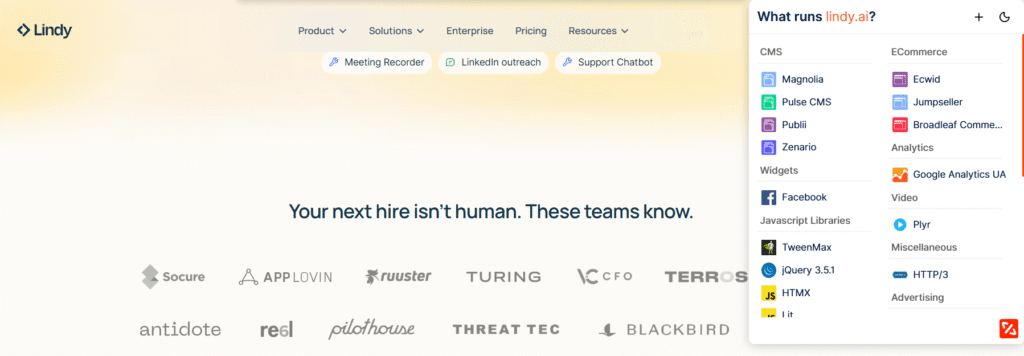
The extension works simply: you visit a website, click the extension icon, and it lists the technologies it detects. The layout is similar to Wappalyzer’s, grouping technologies by category like CMS, JavaScript libraries, and ecommerce.
Limitations
In my tests, coverage was noticeably thinner than the paid tools. For example, on lindy.ai, WhatRuns didn’t pick up some widely used tools such as VWO (a popular CRO platform) and HubSpot (a major marketing platform), even though they were present on the site.
Pricing
WhatRuns is 100% free. So if you only need a basic, free way to see a quick snapshot of a site’s tech stack, WhatRuns can still be useful. For more complete coverage or any serious prospecting or research, one of the other tools in this list is likely a better fit.
If you’re looking for more free ways to find the tech stack of a company, I wrote a guide with some techniques here.
#6: Apps Run The World – best for market researchers
So far we’ve looked at tools that focus heavily on frontend technologies. Apps Run The World is oriented more toward enterprise applications and market research.
Despite the slightly unusual name, they’ve been around for many years and focus on tracking which companies use specific B2B applications, along with revenue estimates and employee counts.
For instance, in the screenshot below you can see how they allow you to filter and export companies using Asana based on industry, employee count, and other firmographic attributes.
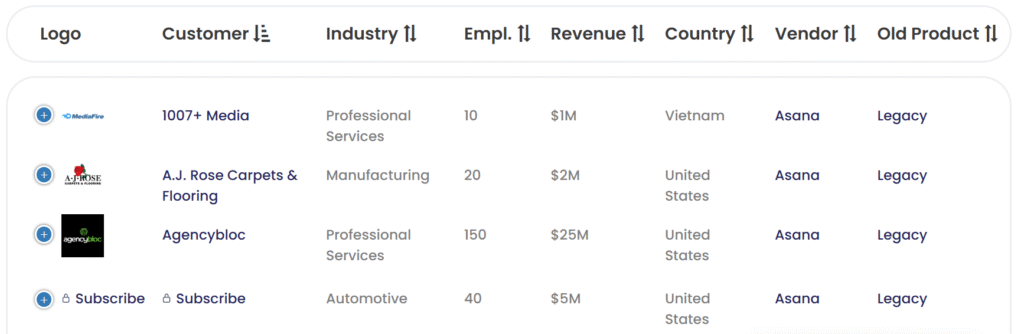
If you’re doing market research, you can quickly see which industries or countries a product like Asana has the most penetration in. That’s useful if you want to target those customers and need clarity on which segments to prioritize for marketing and sales.
Limitations
Apps Run The World discloses that a meaningful portion of its data comes from job postings. That approach can be useful but also introduces some noise: if a company mentions a technology in a job description, it doesn’t always guarantee they are (or remain) an active customer.
For example, if you look at their list of Asana customers, they show 254 customers, which is significantly below the customer counts Asana reports in its public financial filings. So it’s best to treat this as a directional dataset rather than a complete universe.
Pricing
In terms of pricing, Apps Run The World operates on a subscription-based model geared toward enterprise users. Plans typically start around $995/month for basic access.
#7: NerdyData – best if you’re technically advanced and know what you’re searching for
One of the more distinctive tools in this list is NerdyData. I first came across it when it launched on Hacker News a decade ago, and it’s stayed fairly true to its original “for developers and power users” concept.
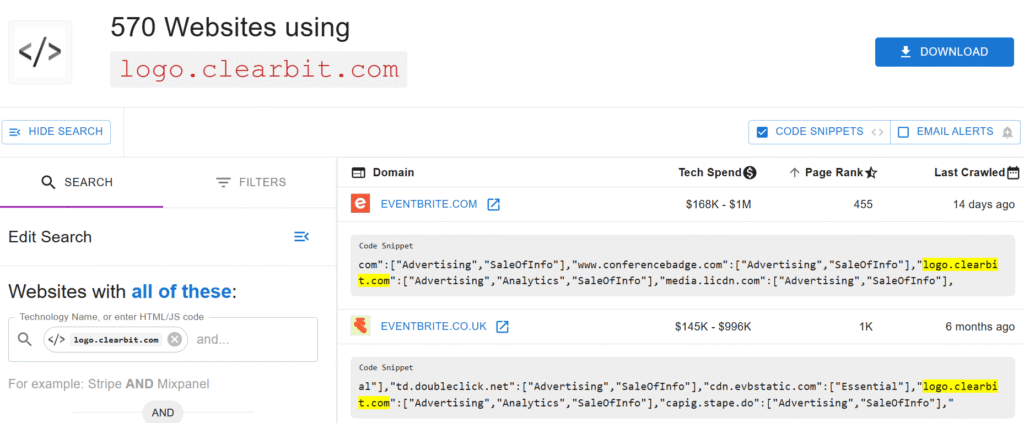
NerdyData works by letting you search for any string or snippet, and then finding every website that has that string in its HTML source.
Because of that, it’s particularly useful when you’re looking for something niche or very specific in a codebase, rather than a broad technology category.
As an experiment, I wanted to find websites that used Clearbit’s free Logo API, which is being retired. I searched for “logo.clearbit.com” and NerdyData found 570 sites with that string in their HTML source. It also showed exactly where in the HTML it appeared so I could verify each match.
Limitations
Like most tools in this category, NerdyData doesn’t track backend technologies. And although its “search any string” model is powerful, it works best if you already know what you’re looking for. If you just have a general product name and need an easy point-and-click interface, some of the other tools in this list will be more user-friendly.
Pricing
NerdyData’s pricing starts at around $200/month for 5,000 rows (websites), with higher tiers available for larger datasets.
8. CRFT Lookup – another free tool
CRFT Lookup is a free tool focused on one core job: identifying the frontend tech stack for a given website.
Instead of a browser extension, it offers a web interface where you enter a domain and get a report listing frontend technologies plus additional information such as meta tags and the site’s sitemap.
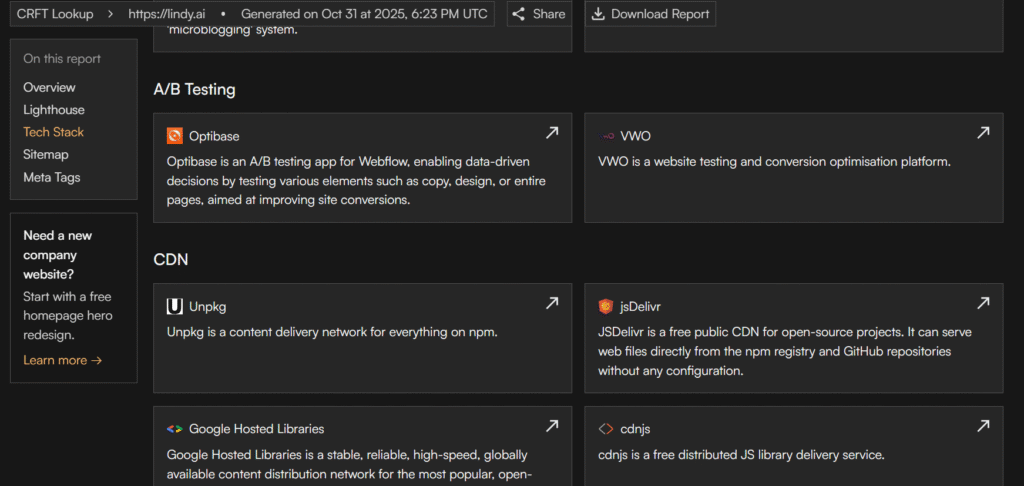
When I generated a report for lindy.ai, CRFT detected most of the frontend technologies in use, including VWO, Microsoft Clarity, and HockeyStack. A nice touch is that it includes short descriptions for each technology, which is especially helpful when you’re not familiar with every tool it finds, as shown in the screenshot below.
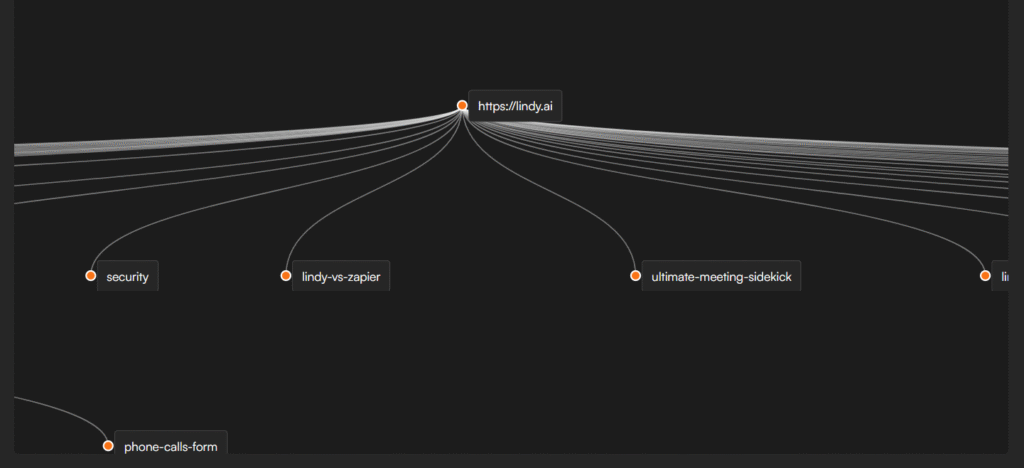
CRFT also visualizes a site’s sitemap, so you can quickly understand how content is structured. That can be useful for getting a high-level view of a site’s marketing, key pages, and overall content strategy.
Limitations
CRFT is focused on single-site analysis. It doesn’t currently offer a way to search for all companies using a specific technology, so if you need large technographic lists or lead generation, you’ll need another tool. It also doesn’t provide information on backend or internal systems.
Pricing
CRFT is free to use and doesn’t require an account. I didn’t hit any limits during my testing, and the site doesn’t prominently list usage caps, though there may be rate limits behind the scenes.
9. FUL.IO – another free tech lookup tool
Ful.io (often stylized as FUL.io) is another tech lookup tool with a free plan, and it’s functionally similar to CRFT in several ways.
Like CRFT, it doesn’t use a browser extension. Instead, you enter a domain and it generates a report showing the frontend tech stack for that website.
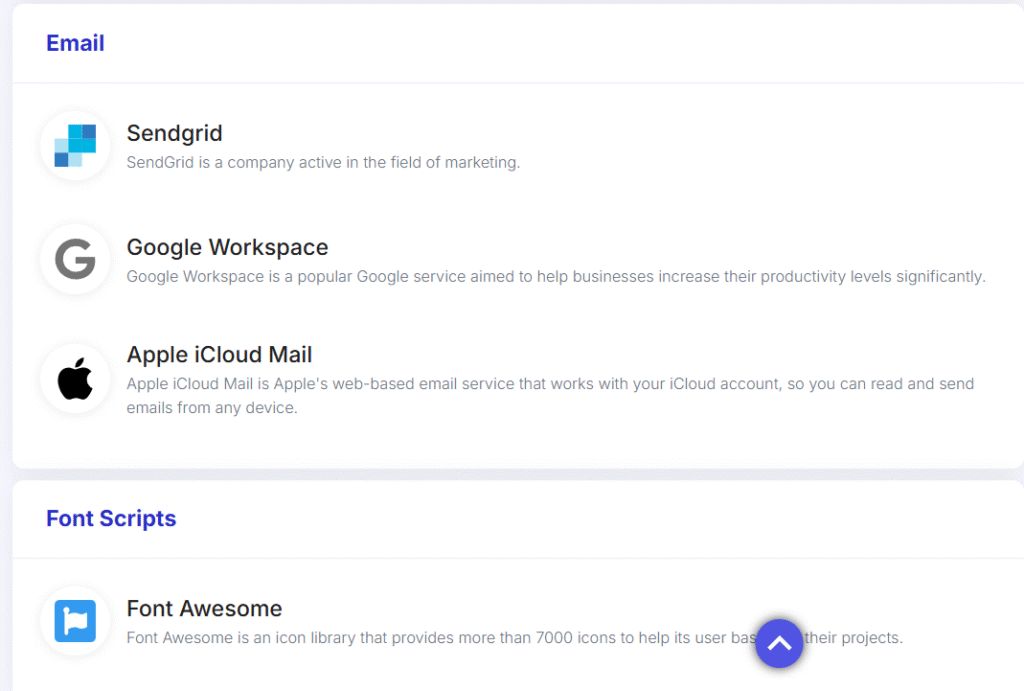
One detail I found useful is that Ful.io goes a bit beyond the basics and attempts to infer some of the underlying infrastructure. For example, when I looked up lindy.ai, it showed that the site uses SendGrid and Google Workspace.
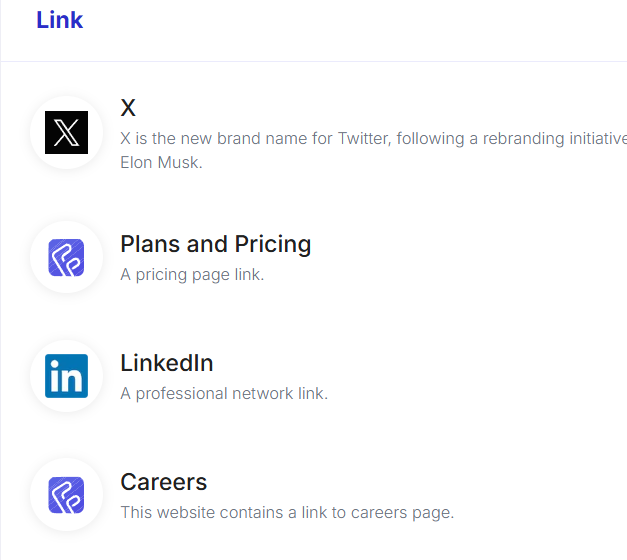
Ful.io also identifies special links on a site (e.g., careers pages, pricing pages, LinkedIn profile links), which can be handy for quick navigation and basic research.
Ful.io is free to try and doesn’t require an account to get started. I didn’t encounter explicit usage limits during testing, though they do mention paid plans, so higher-volume users may need to upgrade.
Limitations
As far as I can tell, Ful.io doesn’t offer a way to generate large lists of companies using a specific technology, and it doesn’t provide detailed backend technographics. It’s best suited to one-off website-level lookups.
Pricing
Ful.io is 100% free.
10. urlscan.io – useful for finding technologies on inner pages
urlscan.io is a more specialized tool that many sales or marketing teams won’t need day-to-day, but it’s worth mentioning if you do OSINT or security-oriented research.
urlscan.io acts like a combination of screenshot archive and X-ray tool for web pages. When someone submits a URL, it visits that page, takes a screenshot, and generates a detailed report showing scripts, third-party services, and other technical components.
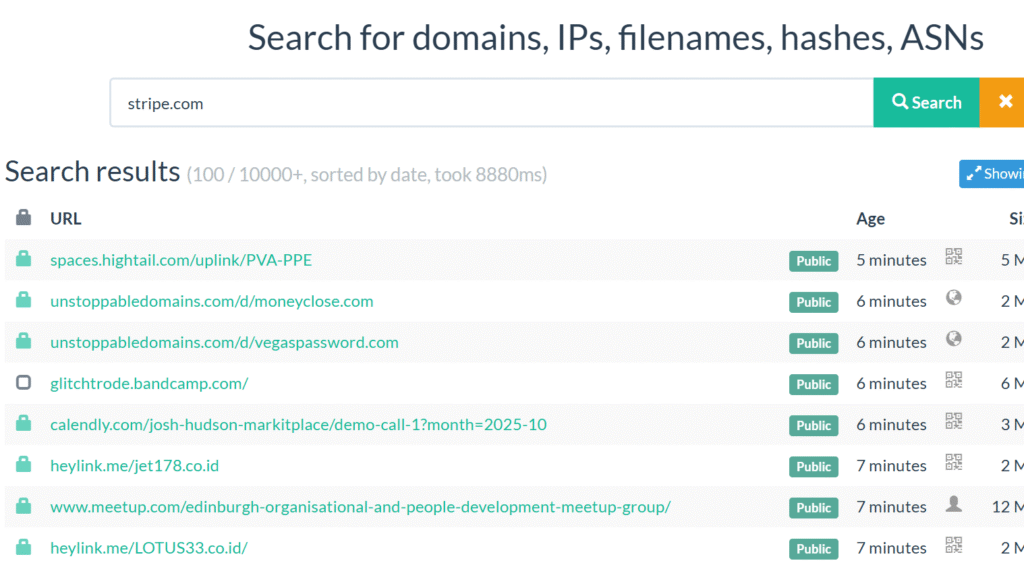
Because it scans many inner pages, it can surface technologies that only appear in checkout flows, logged-in app pages, or other areas that BuiltWith may not crawl frequently. These scripts might not be present on the homepage, but they still reveal important parts of the stack.
As an example, when I searched for “stripe.com”, urlscan.io showed multiple inner pages that had the Stripe JavaScript embedded, including pages that weren’t homepages.
Limitations
urlscan.io is primarily designed for security and OSINT researchers, not for sales or marketing teams. The interface reflects that: it’s powerful, but less approachable if you’re just looking for straightforward technographic lists. I’m including it here because it can reveal technologies in places most standard web crawlers don’t reach.
Pricing
urlscan.io is 100% free.
Which alternative should you choose?
The best alternative depends on your specific use case and how deep you need to go:
- Choose Bloomberry if you need enterprise tech detection, and if you’re doing sales prospecting
- Choose Wappalyzer if you mainly need data on frontend technologies and do up to ~50 website lookups a month on the free plan.
- Choose SimilarTech if you want advanced filtering such as finding companies that use a specific frontend technology and match particular firmographics.
- Choose TechPeeker if you’re looking to build lead lists based on websites using a particular framework or CMS.
- Choose WhatRuns if your budget is $0 and you just need quick, lightweight tech lookups.
- Choose Apps Run The World if you’re focused on market research and high-level tech usage trends.
- Choose NerdyData if you’re technically adept and know exactly what strings or patterns you’re searching for.
- Choose CRFT Lookup if you want a free tool to analyze the frontend tech stack and sitemap of individual websites.
- Choose Ful.io if you want a free, fast way to see a site’s tech stack plus a bit of inferred infrastructure and link metadata.
- Choose urlscan.io if you’re doing OSINT or security research and need visibility into technologies running on inner pages.
If you’re building a competitor to BuiltWith and want me to test it, feel free to email me with login details and a short note on what makes it different. I’m always curious to see new approaches in this space and may be able to include it in a future update of this list.
📊 See which companies use these tools
Explore adoption data for the technographic and sales intelligence tools powering competitive research: